
TutorialJanuary 10, 20256 min read
How to Reduce PDF File Size: 7 Practical Methods That Actually Work
Seven proven methods to reduce PDF file size without losing quality — from browser-based compression to removing pages, converting to grayscale, and stripping metadata.
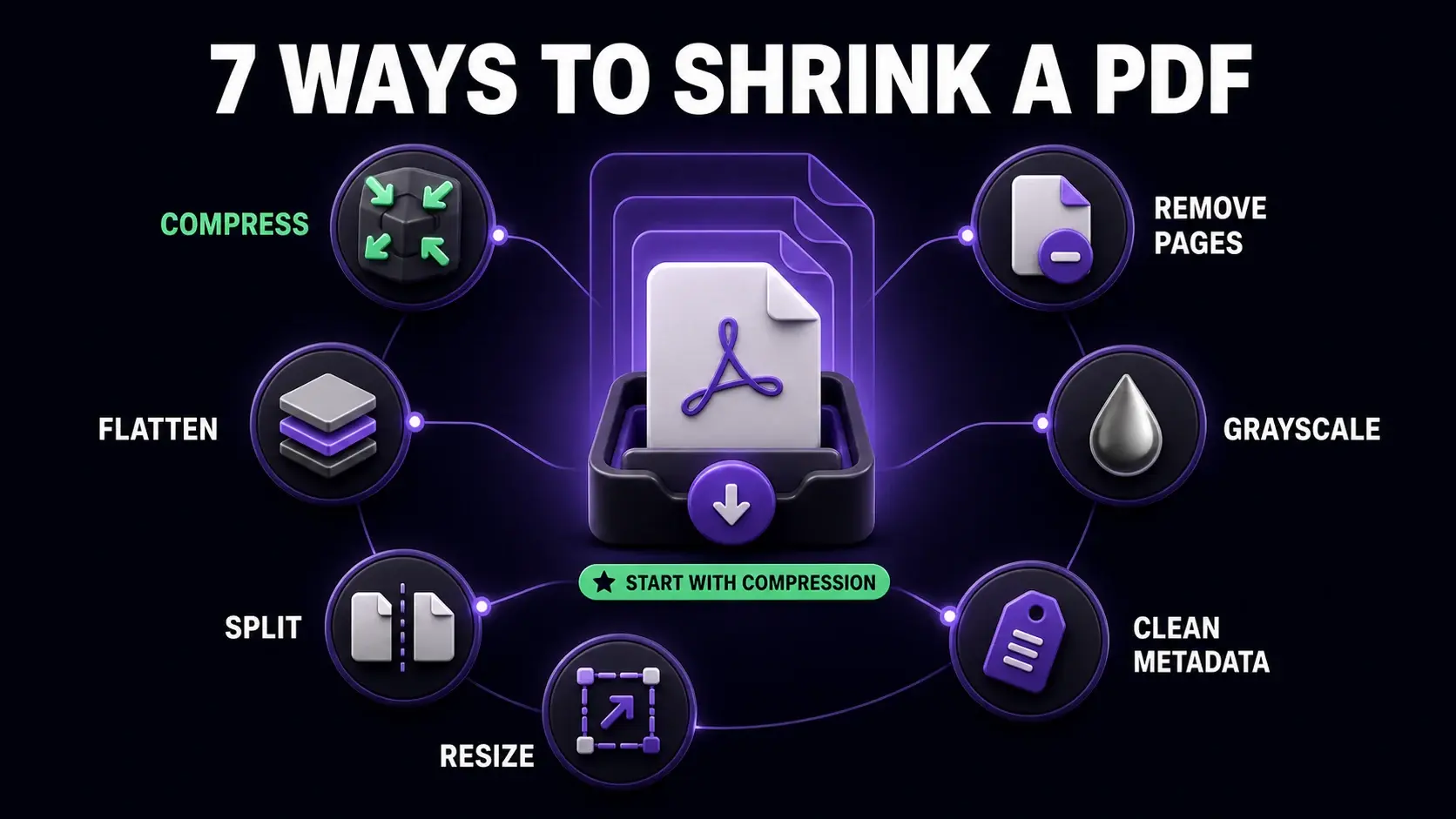
A PDF that is too large creates real problems: email attachments get rejected, upload forms time out, Google Drive quotas fill up, and sharing over slow connections becomes painful. The good news is that most oversized PDFs can be significantly reduced using the right technique for the situation. Here are seven methods that work, ordered from simplest to most involved. All the tools mentioned run in your browser with no uploads required.
Method 1: Use a PDF Compressor
The fastest method for most PDFs is running them through a dedicated PDF compression tool. Choose Medium compression for the best balance of quality and size reduction — this typically reduces file size by 40–70% with no visible quality loss for screen reading. For documents you need to email, High compression gives maximum size reduction. The compressor works by re-rendering each page as an optimised JPEG image and strips metadata that adds hidden bulk. After compression, you see the exact before/after file sizes and the percentage reduction, so you always know the result before keeping the file.
Method 2: Remove Unnecessary Pages
Before compressing, audit the document for pages you do not need. Cover pages, blank pages, duplicate pages, appendices, and legal boilerplate that is not relevant to the recipient all add to the file size. Use the page remover tool to delete specific pages, or the split tool to extract only the pages you need into a new file. Removing pages reduces the base file size before any compression, and the combined effect of removing unnecessary pages plus compressing the remainder often achieves much better results than compression alone.
Method 3: Convert to Grayscale
Colour images store three channels of data (red, green, blue) while grayscale images store only one. For documents where colour is not important — internal reports, text-heavy documents, scanned forms — converting to black and white or grayscale can reduce file size by 30–60% compared to the colour original. This is particularly effective for PDFs containing photographs or colour diagrams that are being shared in a context where colour is irrelevant. The conversion process also makes subsequent compression more effective since there is less image data to work with.
Method 4: Remove Metadata
Every PDF quietly carries metadata: author name, company name, software version, creation date, modification date, and sometimes the revision history of the document. For large documents with many revisions, this hidden data can add meaningful file size. More importantly, it can reveal information you did not intend to share. Use the metadata remover to strip all of this invisible data. On its own the size reduction is modest, but combined with other methods it contributes to the overall reduction — and the privacy benefit is significant regardless of the size saving.
Method 5: Resize the Page Dimensions
If a PDF was created at an unusually large page size — A3 instead of A4, or a custom large format from a design application — resizing the pages to standard dimensions reduces file size because the images embedded in the page scale down with the page. Use the resize tool to convert pages to a standard size like A4 or Letter. This is most effective for PDFs exported from design software (InDesign, Illustrator, Figma) where large artboard sizes are common. For standard documents created in Word or Google Docs, page sizing is rarely an issue.
Method 6: Split the File Into Smaller Parts
Sometimes the best solution is not to make the whole file smaller but to split it into smaller parts. A 100-page annual report can be split into: Executive Summary (10 pages), Main Report (60 pages), and Appendices (30 pages). Each part is more manageable to share, and recipients who only need one section do not need to download the whole document. This approach also makes subsequent compression more effective — compressing 30-page sections often achieves better results than compressing the full 100-page document, because the compressor can allocate resources more efficiently per file.
Method 7: Flatten Annotations and Forms
PDFs with interactive elements — form fields, annotations, comments, and sticky notes — store these elements separately from the page content. If these elements are no longer needed for editing, flattening the PDF merges them permanently into the page content, removing the separate interactive data layer. This can meaningfully reduce file size for heavily annotated documents or filled forms. Flattening also makes the document safer to share since recipients can no longer accidentally delete or modify annotations. It is an irreversible operation — the form fields and annotations become permanent parts of the page — so keep a copy of the interactive version if you might need to edit it again.
Ready to Try FixMyPDF?
Free, private, no account — 79+ PDF tools that run entirely in your browser.
Explore All 79+ Tools