
GuideJanuary 9, 20256 min read
Image to PDF Guide: How to Convert JPG, PNG, and Other Images to PDF
Complete guide to converting images to PDF format. Covers JPG, PNG, TIFF, and other formats, quality settings, combining multiple images, and best practices for different use cases.
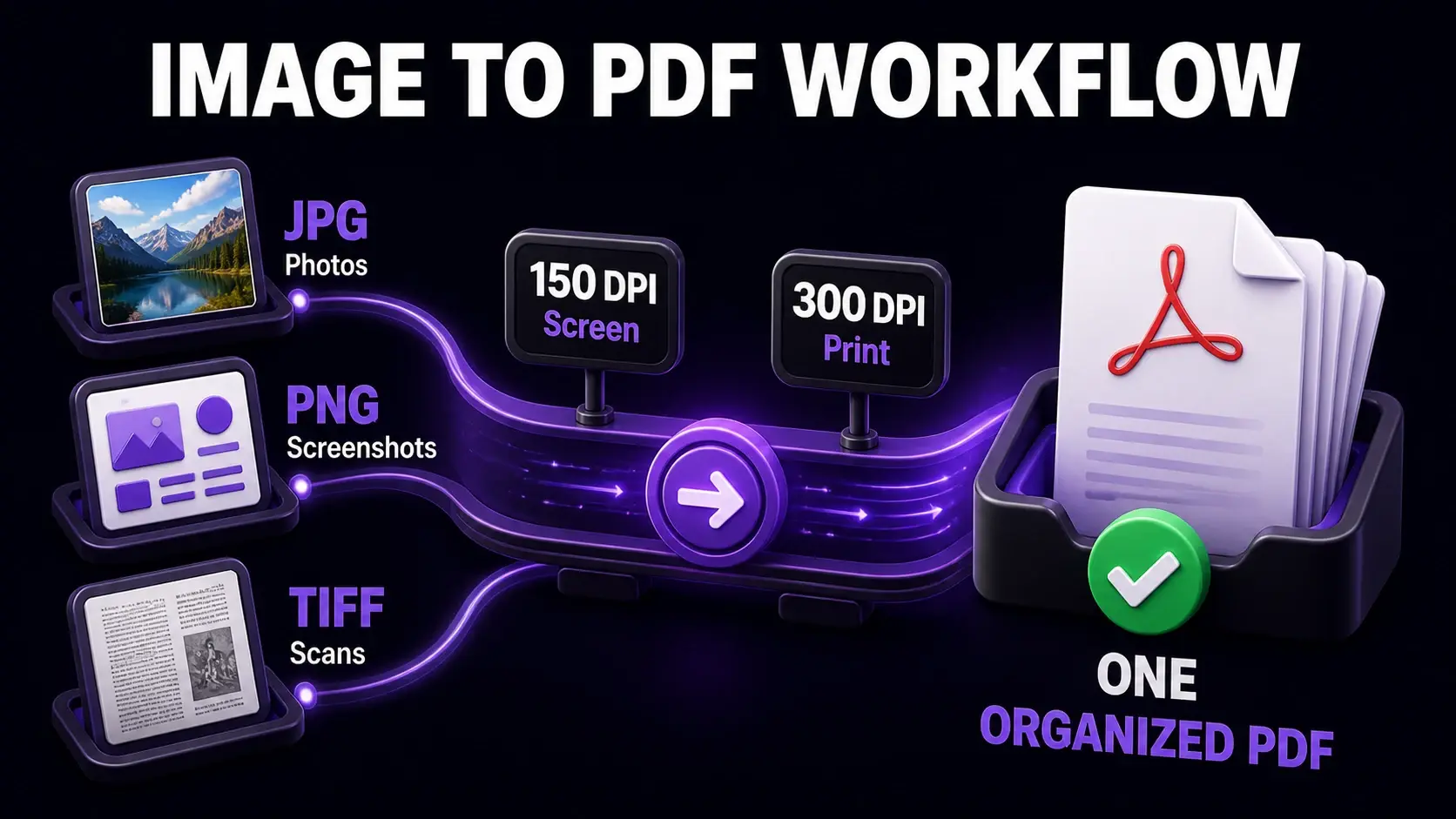
Converting images to PDF is one of those tasks that sounds simple but has many nuances depending on what you need the final document for. A scanned contract, a photo portfolio, a collection of screenshots, and a digitized receipt all involve image-to-PDF conversion but with completely different quality and size requirements. This guide covers the key decisions and best practices for each scenario. You can convert JPG to PDF, PNG to PDF, and other formats directly in your browser.
Choosing the Right Image Format to Convert
Different image formats produce different results when converted to PDF. JPG (JPEG) is best for photographs and complex images — it uses lossy compression that keeps file sizes small while maintaining good visual quality for natural images. PNG is better for screenshots, diagrams, charts, and images with text because it uses lossless compression that preserves sharp edges and text clearly. TIFF is common for high-quality scanned documents in professional and archival contexts. BMP is an uncompressed format that produces very large files — if you have BMP files, convert them via our BMP to PDF tool but expect larger output file sizes compared to JPG or PNG sources.
Combining Multiple Images Into One PDF
Converting a single image to PDF is straightforward, but combining multiple images into a single PDF document requires a slightly different approach. If you have a set of scanned pages (page-1.jpg, page-2.jpg, page-3.jpg...), convert each image to PDF individually, then use the PDF merger to combine them in order. The merger lets you drag to reorder files, so you can arrange the pages correctly before combining. This workflow is standard for digitising multi-page paper documents where each page was scanned separately. For large collections, use alphabetical or numerical file naming to make ordering easier.
Image Resolution and PDF Quality
The resolution of your source image determines the sharpness of the resulting PDF. For printed documents, 300 DPI is the standard — anything lower will look blurry when printed at full size. For screen-only use, 150 DPI is generally sufficient and produces a smaller file. For document archiving (receipts, contracts, certificates), 200–300 DPI preserves enough detail to read fine print clearly. When taking photos of documents with a smartphone, make sure the entire document is in frame, the lighting is even, and the phone is held directly above the document — an angled photo will distort the text and make it harder to read in the PDF.
Page Size and Orientation
When converting an image to PDF, the page size of the resulting PDF typically matches the image dimensions. A portrait photo produces a portrait-oriented PDF page; a landscape photo produces a landscape page. If you are building a document that should be standard A4 or Letter size, you may need to resize the pages after conversion. Use our page resize tool to standardise page dimensions. For scanned documents, ensure the original paper was flat and fully within the scanner bed to avoid cropped edges or skewed pages. A PDF crop tool can trim scanner borders and alignment marks after conversion.
Converting Screenshots and UI Images to PDF
Screenshots and UI captures are common in technical documentation, bug reports, and tutorials. PNG is the right format for these since it handles the sharp edges of user interface elements, icons, and text without the compression artefacts that JPG introduces. When converting screenshots to PDF for a documentation set, maintain consistent dimensions across all screenshots before converting — this ensures the pages look uniform in the final document. If your screenshots have varying aspect ratios, use the resize tool to standardise them, or set a consistent crop using the crop tool after conversion.
Image PDF vs. Searchable PDF
When you convert an image to PDF, the resulting document contains only the visual data — the text in the image is text you can see but not select, copy, or search. This is called an image-only PDF or raster PDF. It is fine for archiving receipts and scanned correspondence but has limitations: you cannot search within it, cannot select text to copy, and accessibility tools cannot read it. To create a searchable PDF from a scanned document, you need OCR (Optical Character Recognition) software that analyses the image and adds a text layer behind the visible page. Standard image-to-PDF conversion does not include OCR — it simply wraps the image in a PDF container.
File Size Considerations for Image PDFs
Image PDFs tend to be larger than text-based PDFs because they store pixel data rather than fonts and vectors. A 10-page scanned document can easily be 5–20MB depending on the scan resolution and image format. After converting images to PDF, run the result through our PDF compressor to reduce file size. For black-and-white scanned documents (forms, typed letters, contracts), converting to grayscale or black and white before compressing significantly reduces file size since colour data is removed. A 10MB colour scan of a text document can often be reduced to under 2MB through grayscale conversion and compression without losing any readability.
Ready to Try FixMyPDF?
Free, private, no account — 79+ PDF tools that run entirely in your browser.
Explore All 79+ Tools