
GuideMarch 23, 20267 min read
How to Split a PDF for Free (Every Method Explained)
Split PDF files into pages, chapters, or ranges. Free methods for Mac, Windows, iPhone, Android — no software needed.
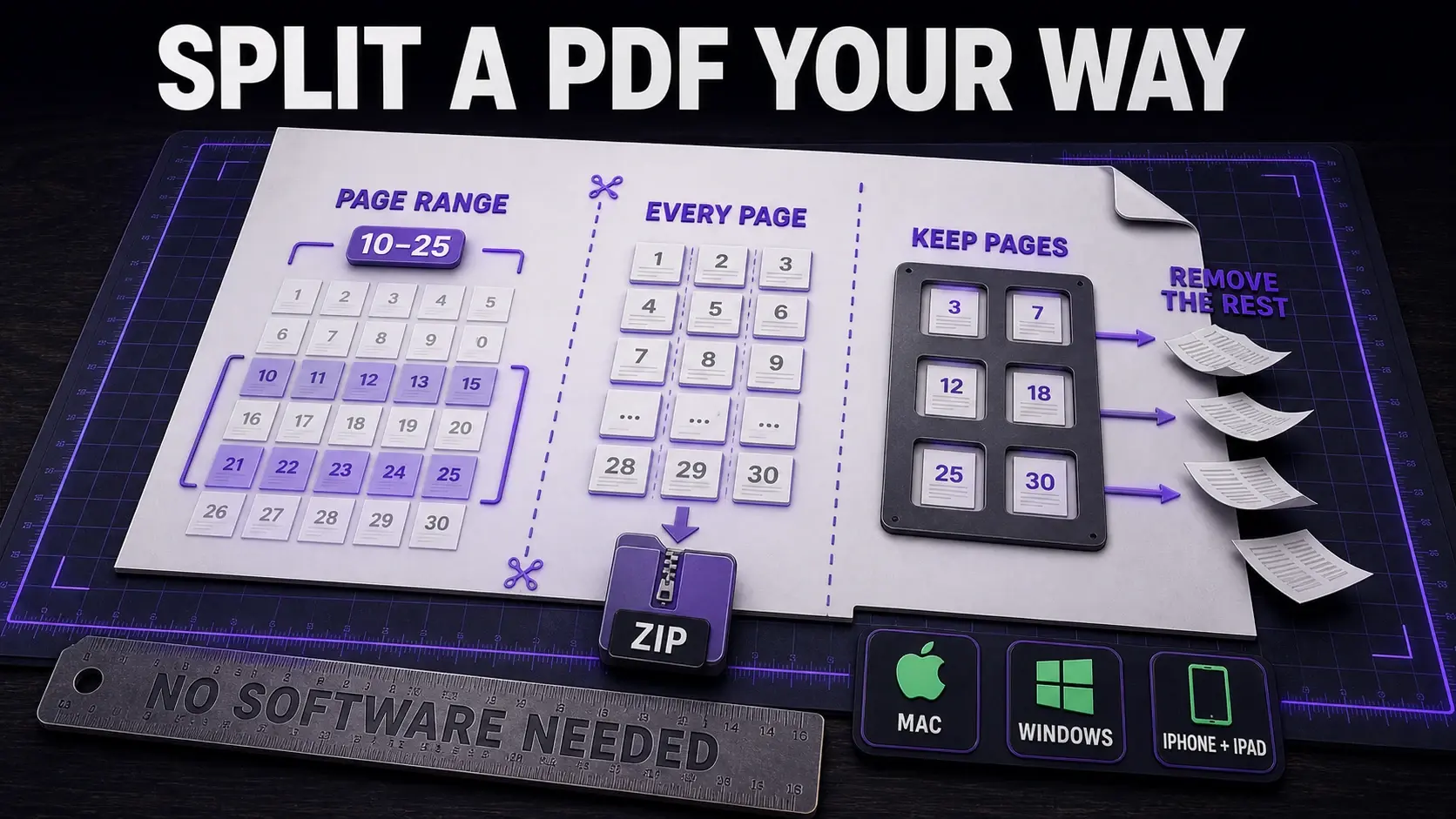
Splitting a PDF means extracting pages or page ranges into separate files. Common reasons: sharing only a relevant chapter, extracting a single page, splitting a scanned document by section. Here is every free method in 2026. The fastest: FixMyPDF split.
The Quickest Way
Go to fixmypdf.in/tools/split. Upload your PDF. Choose how to split: by page range (e.g. extract pages 5–12), every N pages, or every single page into individual files. Download. No install, no upload to server.
Split by Page Range
Best for extracting a chapter or section. Upload to FixMyPDF split. Enter the range (e.g. "10-25"). Download only those pages as a new PDF.
Split Every Page into Individual Files
Select "Every page" mode. FixMyPDF creates one PDF per page and packages them in a ZIP file. Useful for reordering pages between documents or processing each page individually.
On Mac: Preview
Open PDF in Preview. View → Thumbnails. Drag a page thumbnail out of the sidebar onto the Desktop — it becomes a new single-page PDF. Efficient for single-page extractions. FixMyPDF is faster for multi-page ranges.
On Windows
Windows has no native PDF split. Use FixMyPDF in Chrome or Edge.
On iPhone and iPad
Safari → fixmypdf.in/tools/split. Upload from Files. Choose split method. Download ZIP if splitting into many files — iOS opens ZIPs natively.
Remove Pages You Do Not Need
Use extract pages to select which pages to keep. Also try remove blank pages for automatically detecting empty pages in scanned documents.
Ready to Try FixMyPDF?
Free, private, no account — 79+ PDF tools that run entirely in your browser.
Explore All 79+ Tools