
What’s Inside a PDF File? How to Inspect Text, Fonts, Images, Forms, Scripts and Attachments
See what a PDF can contain beyond the visible page. Learn eight PDF layers and inspect text, fonts, images, metadata, forms, scripts, links and attachments.
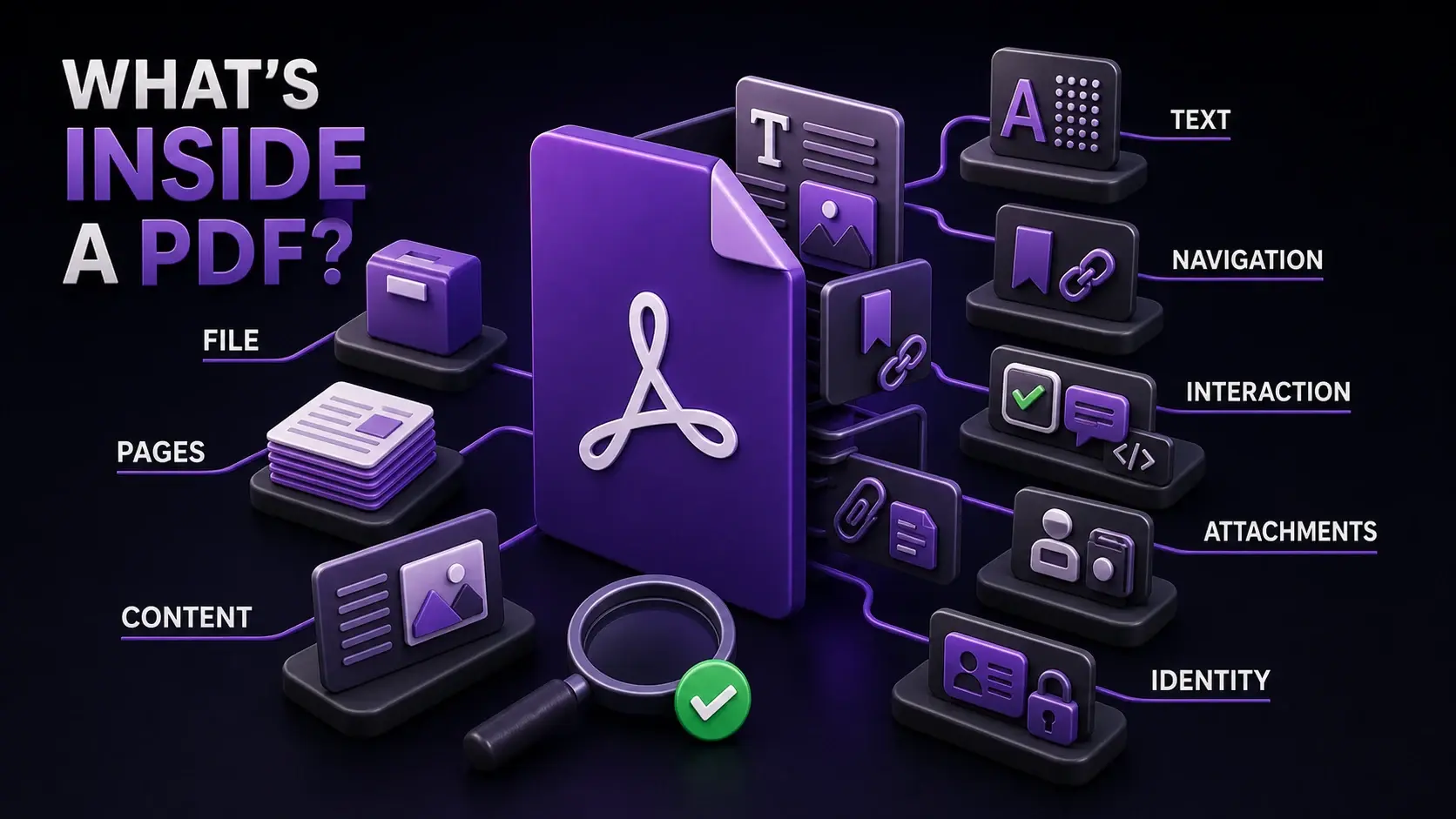
A PDF is a structured container, not a photograph of a page. It can hold visible text and images, but also fonts, OCR text, page geometry, bookmarks, links, comments, forms, JavaScript, embedded files, metadata, encryption settings, and more. Two PDFs can look identical while behaving completely differently. This guide explains eight practical layers and shows how to inspect them without confusing “present” with “dangerous.”
Quick Answer: What Is Inside a PDF?
At the simplest level, a PDF stores a collection of numbered objects. Dictionaries describe properties, streams hold compressed content such as page instructions, images, or fonts, and references connect the objects. A page does not store a Word-style paragraph; it commonly stores instructions to place glyphs, paths, and images at coordinates.
The PDF Association’s ISO 32000 resources describe the standardized format. You do not need to read the specification to diagnose everyday files, but the container model explains why viewing, copying, printing, searching, editing, and accessibility can produce different results.
The Eight Layers of a PDF
| Layer | What it can contain | Why it matters |
|---|---|---|
| 1. File | Version, object structure, compression, linearization, encryption | Opening, loading, compatibility and access |
| 2. Pages | Page tree, dimensions, page boxes and rotation | Order, printing, cropping and mixed sizes |
| 3. Content | Text drawing commands, vector paths and raster images | What appears on the page |
| 4. Text intelligence | Fonts, encodings, Unicode mappings and OCR layers | Search, copy, extraction and accessibility |
| 5. Navigation | Bookmarks, destinations and links | Moving within or outside the document |
| 6. Interaction | Annotations, comments, forms, actions and JavaScript | Review, data entry and automated behavior |
| 7. Attachments | Embedded files and portfolio content | A PDF can package other files |
| 8. Identity | Info fields, XMP metadata, permissions and signatures | Attribution, discovery, access and integrity |
“Hidden information” is not one technical category. Metadata, comments, attachments, scripts, form values, and invisible OCR text are different objects with different purposes and different removal methods.
How to Inspect a PDF in Five Steps
- Preserve the original: inspect a copy when you may later remove or transform content.
- Run a structural overview: open FixMyPDF PDF Inspector, select the file, and review every results tab. Processing happens in your browser.
- Test the text: select, search and copy representative words, then use PDF to Text to see what software can extract.
- Follow structural signals: if the overview reports links, annotations, forms, JavaScript, or attachments, use a relevant specialist tool or trusted desktop viewer for closer examination.
- Interpret, do not assume: a detected feature is evidence of presence—not intent, safety, accuracy, or harm.
FixMyPDF Inspector currently reports the overview and metadata, encryption signals, up to ten pages of geometry and image sampling, up to five pages of font sampling, and structural indicators. Sampling makes the report fast, but a “not found” result is not a forensic guarantee for every object in a complex file.
Layer 1: The PDF File Container
The file layer identifies the PDF version, total bytes, page count, encryption signal, and whether the document is optimized for incremental web loading. Internally, indirect objects are connected through cross-reference information so a reader can locate pages and resources. Content streams may be compressed even when the overall filename ends in .pdf.
A newer PDF version does not automatically mean better quality, and linearization does not reduce the number of pages; it changes how a web server can deliver the file. A damaged cross-reference structure may cause one viewer to repair and open a document that another viewer rejects. PDF Inspector provides a useful overview, but it is not a complete corruption-repair or conformance validator.
Layer 2: Pages, Dimensions, Boxes and Rotation
A PDF page has geometry, not merely a paper name. Page dictionaries can define MediaBox, CropBox, BleedBox, TrimBox and ArtBox boundaries. The visible area may therefore differ from the full media area, and pages in one file can use different dimensions or rotations.
Inspector samples page width, height, MediaBox and rotation. Use Get Page Dimensions for a dedicated size check, Rotate PDF for incorrect orientation, Reorder Pages for sequence problems, and Change Page Dimension when a workflow requires consistent output. Never assume A4 and US Letter are interchangeable: their aspect ratios differ.
Layer 3: Visible Text, Vector Graphics and Images
What you see can be produced by three different kinds of drawing instruction. Text uses font glyphs positioned on the page. Vector graphics use paths for lines, curves, fills and strokes. Raster images store pixels and commonly represent photographs or entire scanned pages. A chart may combine all three.
This distinction affects quality and file size. Vector lines and digital text remain sharp when zoomed; a scan eventually reveals pixels. Inspector counts sampled inline and XObject image-paint operations, but an image count is not the same as the number of photographs a person sees—one image may be reused, masked, tiled, or drawn more than once.
Layer 4: Fonts, Character Encoding and OCR Text
A PDF can display a glyph without storing the character mapping that copy, search, or screen-reader software expects. Embedded or referenced fonts determine appearance; encodings and Unicode mappings connect glyphs to characters. When that connection is absent or broken, “invoice” may look correct yet paste as different symbols.
An image-only scan has no text characters unless OCR adds a recognized text layer. Test representative pages with PDF to Text and read the scanned versus searchable PDF guide. Inspector’s font list is sampled and its displayed encoding description is a diagnostic approximation, not a font-forensics report or proof that every character maps correctly.
Layer 5: Bookmarks, Destinations and Links
Bookmarks—called outlines in the PDF model—form a navigation tree. Internal links can point to named or explicit destinations, while external links can open web addresses, email clients, or other resources. The visible text of a link and its destination are separate, so a label can point somewhere unexpected.
Inspector reports an outline signal. Use PDF Link Inspector to examine link targets more directly. A link’s presence is neither proof of safety nor proof of danger; inspect unfamiliar destinations before opening them. Broken bookmarks and links usually indicate missing or changed destinations, not damaged visible page content.
Layer 6: Comments, Forms, Actions and JavaScript
Annotations are separate page-associated objects. They include comments, highlights, underlines, stamps, ink, links, file-attachment annotations and widget annotations used by forms. Because they are separate, a viewer can show, hide, print, flatten, or ignore them differently. AcroForm fields can store values independently from their visual appearance.
PDF JavaScript and actions can support legitimate calculations, validation, navigation and form behavior. Detection does not establish malicious intent. Conversely, a basic “No” result does not certify a file as safe because actions can be represented in several places and malware analysis requires specialized tools. For a finalized copy, use Remove Annotations, Remove PDF Comments, or Remove PDF Highlights when removal is truly intended. Flattening makes supported interactive appearances static; removal deletes selected annotation objects. Preserve an editable original.
Layer 7: Embedded Files and PDF Portfolios
A PDF can act as a package. Embedded files may include spreadsheets, source documents, images, XML data, text, or another PDF. Some appear in an attachments panel; file-attachment annotations may appear as paperclip icons; portfolio interfaces can organize several documents behind a cover.
Use Extract Embedded Files to list and save supported files stored in the document’s EmbeddedFiles name tree. Extracting a file does not make it trustworthy—scan unknown attachments with appropriate security software before opening. Inspector’s attachment signal and the extractor are not comprehensive malware or portfolio-forensics tools.
Layer 8: Metadata, Encryption, Permissions and Signatures
The document Info dictionary and XMP packets can describe title, author, subject, keywords, creator application, PDF producer, and creation or modification dates. This identity layer helps catalog public documents but can disclose unintended details in private workflows. Read PDF Metadata Explained for the dedicated view/edit/remove workflow.
Metadata Viewer inspects common fields, while Metadata Remover clears the standard properties supported by the tool. It is not a complete sanitizer for comments, attachments, scripts, forms, hidden layers, previous revisions, or every possible custom/private data stream.
Encryption controls access; permission flags request restrictions such as printing or copying. They do not prove that a sender is trustworthy. Digital signatures are a separate integrity mechanism: modifying a signed PDF can invalidate a signature. Inspector reports encryption-related signals but does not validate certificate trust or cryptographic signatures.
Finding → Meaning → What to Do Next
| Finding | What it means | Next check or tool |
|---|---|---|
| No extractable text | Possibly image-only pages | Test multiple pages; use OCR outside FixMyPDF if confirmed |
| Garbled copied text | Encoding, mapping or OCR problem | PDF to Text and visual comparison |
| Mixed dimensions | Pages use different geometry | Get Page Dimensions, then resize only if required |
| Annotations present | One or more sampled pages has an annotation array | Review in a capable viewer; remove or flatten intentionally |
| Form fields present | An AcroForm structure exists | Test values and appearances in target viewers |
| JavaScript present | A JavaScript name-tree entry was detected | Do not infer malware; use security analysis for unknown files |
| Attachments present | An EmbeddedFiles name-tree entry exists | Extract and scan unknown files separately |
| Metadata populated | Common identity fields contain values | Keep for publication or remove supported fields for privacy |
| Encrypted | Access or permission controls are present | Use an authorized password; do not infer trust |
What PDF Inspector Can—and Cannot—Tell You
It can help answer: How large is the file? How many pages does it have? What common metadata is exposed? Is encryption detected? What geometry appears in the sampled pages? What fonts and image operations appear in the sample? Are structural signals for bookmarks, annotations, forms, JavaScript name-tree entries, or embedded files present?
It cannot certify: that a PDF is malware-free, legally authentic, accessibility-conformant, PDF/A-compliant, correctly redacted, cryptographically valid, free of every hidden object, or safe to open. It also does not deeply parse every possible action, layer, revision, signature, portfolio, private extension, attachment path, or object in a complex document. For security incidents, litigation, compliance certification, or forensic work, use appropriate specialist software and expertise.
A Practical PDF Inspection Checklist
- Work from a copy and keep the original unchanged.
- Record filename, size, page count, PDF version and encryption status.
- Sample page dimensions and orientation across the document.
- Search, select, copy and extract representative text.
- Compare important extracted text with what the page visibly shows.
- Review font and image signals without treating counts as exact visual inventory.
- Inspect bookmarks and link destinations.
- Review annotations, comments, form fields and stored values.
- Investigate detected JavaScript or actions with tools appropriate to the risk.
- List and separately scan unfamiliar embedded attachments.
- Review metadata according to whether the PDF is private or publicly published.
- Do not modify a digitally signed document unless signature invalidation is acceptable.
- Use specialist validation for malware, accessibility, archival conformance, signatures or forensics.
Start with PDF Inspector for a private structural overview. Then follow only the signals relevant to your document instead of applying destructive cleanup blindly.
Frequently Asked Questions
Ready to Try FixMyPDF?
Free, private, no account — 79+ PDF tools that run entirely in your browser.
Explore All 79+ ToolsRelated Comparisons
PDF Metadata Explained: How to View, Edit, and Remove Document Properties
Read article →GuideScanned PDF vs Searchable PDF: How to Tell the Difference and Fix It
Read article →GuidePDF Privacy Guide: How to Share Documents Without Exposing Private Information
Read article →GuideHow to Prepare a PDF for ChatGPT, Claude and Other AI Tools
Read article →