
Forgot PDF Password? Here's How to Open Your File Online (Free & Safe)
Forgot your PDF password? Learn the difference between open and permissions passwords, safe ways to recover access, and how to unlock PDFs online for free.
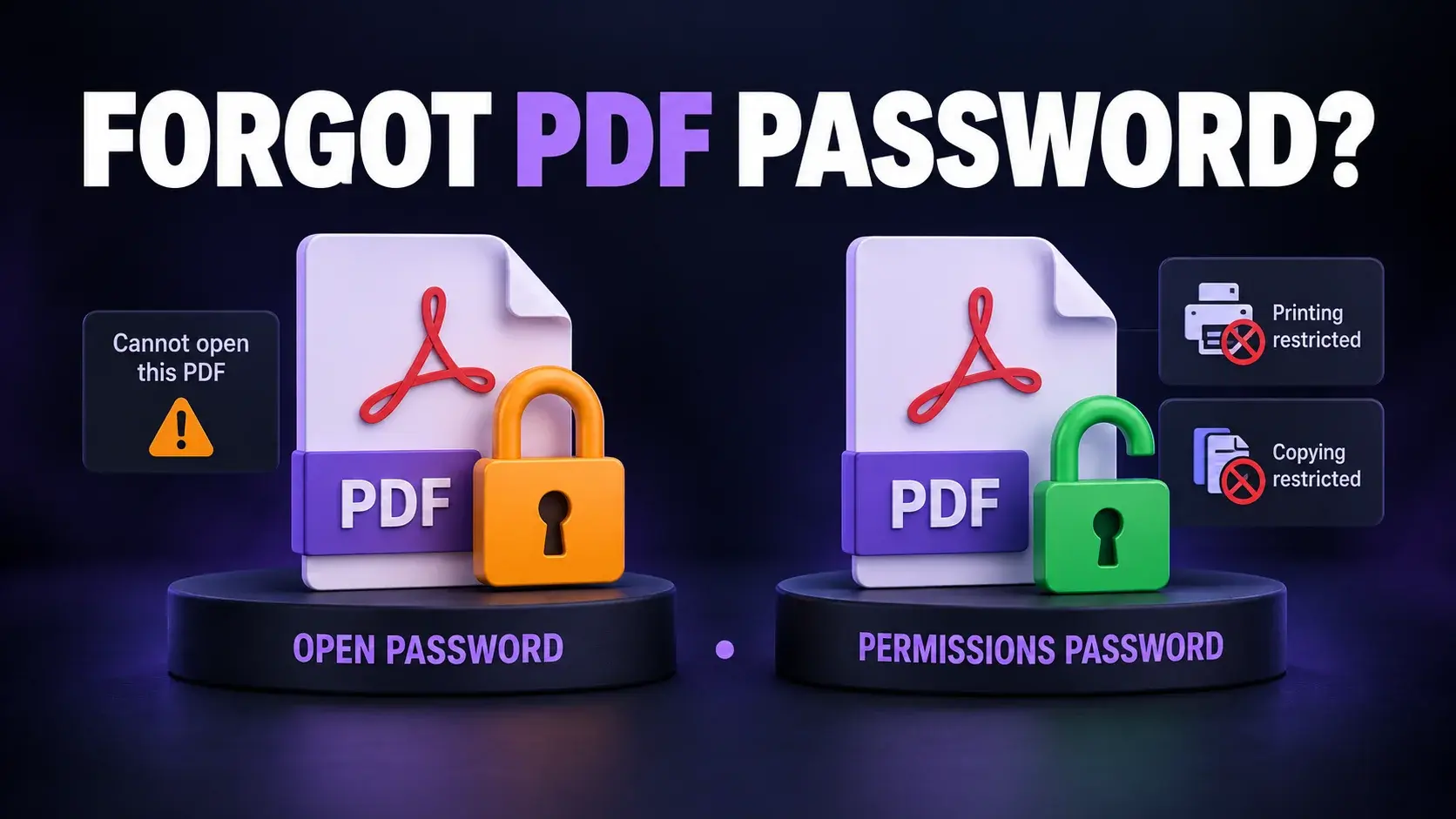
You need to open an important PDF, but you can't remember the password. It's a common problem. Maybe you set the password months ago and forgot it. Maybe someone else locked the file and didn't tell you the password. Either way, you're stuck staring at an "Enter Password" box.
The good news: you don't need to install anything or pay for expensive software to deal with this. This guide walks you through what you can actually do, what won't work, and how to stay safe while trying.
First, Understand the Two Types of PDF Passwords
Before you try anything, it helps to know which kind of lock you're dealing with. This changes what's possible.
1. Open Password (also called User Password)
This password stops anyone from opening the file at all. If you don't know it, you cannot see the content. There's no simple trick to unlock this type without knowing the password. That is by design, so it keeps your data safe.
2. Permissions Password (also called Owner Password)
This password doesn't stop you from opening the file. You can already read it. It only blocks actions such as printing, copying text, or editing. This type of protection can often be removed with an online tool because you already have access to view the content.
If you can open the file but can't copy or print, you have a permissions password. If you can't see the content, you have an open password and should try the recovery steps first.
Can You Recover a Forgotten Open Password?
If you truly forgot the password and can't open the file, here's the honest truth: no legitimate online tool can instantly crack a properly encrypted PDF. That is a good thing because it means your protected documents are safe from strangers too.
Option 1: Think Back to Your Common Passwords
Try your usual password variations, old passwords used for similar documents, simple relevant guesses, and your password manager.
Option 2: Ask Whoever Sent You the File
If someone else shared the PDF, ask them for the password again. This is the fastest fix.
Option 3: Check If You Have an Unlocked Copy
Look through email attachments, cloud storage, and backups for an earlier unprotected copy.
Option 4: Use a Password Recovery Tool (With Caution)
Dedicated software can attempt repeated guesses, but it may take hours or days and works best only for weak or short passwords. Reputable recovery tools run on your own computer rather than asking you to upload a confidential file.
Remove Permissions Password Online (The Easy Case)
If you can already open and read the PDF and only need to remove restrictions such as printing or copying, this can be done in under a minute.
- Open FixMyPDF's free PDF Unlocker.
- Upload your PDF file.
- The tool removes the permissions password automatically.
- Download your unrestricted PDF.
FixMyPDF runs entirely in your browser, so your file never gets uploaded to a server. That matters for bank statements, contracts, ID documents, and other sensitive files.
Comparison: Your Options at a Glance
| Method | Works For | Speed | Cost | Risk |
|---|---|---|---|---|
| Remember or guess | Open password | Fast if correct | Free | None |
| Ask the sender | Open password | Fast | Free | None |
| Find an unlocked copy | Open password | Fast if available | Free | None |
| Browser-based unlock tool | Permissions password | Under 1 minute | Free | Low |
| Desktop recovery software | Weak open passwords | Hours to days | Free or paid | Medium |
| Upload-to-server cracker sites | Neither, usually | Varies | Varies | High |
A Word of Caution About PDF Password Cracker Websites
Be careful with websites promising to remove any PDF password in seconds. They cannot instantly break real encryption, and uploading a private file to an unknown server creates a serious privacy risk. Stick to reputable tools and prefer local browser processing.
How to Avoid This Problem Next Time
- Use a password manager.
- Store important document passwords in a secure locked notes app.
- Remove the password after sensitive sharing if protection is no longer needed.
- Use passwords you can reconstruct with a memorable pattern.
Struggling with a locked PDF? Try FixMyPDF's free PDF Unlocker. Everything runs securely in your browser, so your files never leave your device.
Frequently Asked Questions
Ready to Try FixMyPDF?
Free, private, no account — 79+ PDF tools that run entirely in your browser.
Explore All 79+ Tools