PDF Accessibility Guide: Making Your Documents Readable for Everyone
Learn how to create accessible PDFs that work with screen readers and assistive technologies. Covers WCAG standards, tagged PDFs, alt text, and practical accessibility steps.
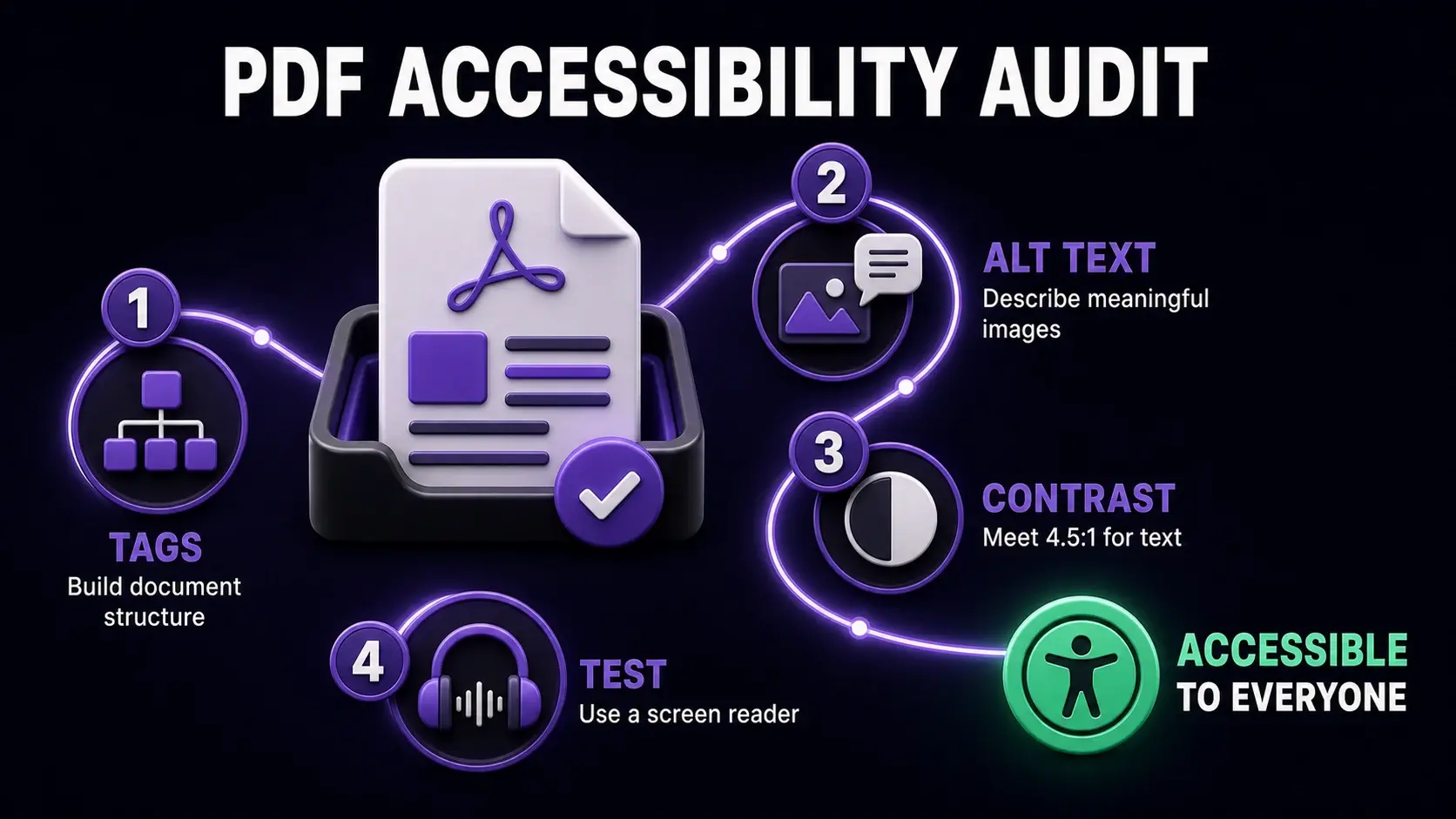
Audit PDF accessibility by checking document tags, meaningful image descriptions, sufficient text contrast, and screen reader support.
An inaccessible PDF is a document that a significant portion of your audience simply cannot use. For the roughly 2.2 billion people worldwide with visual impairments, accessibility features determine whether a document is readable at all. For organisations in the US, UK, and EU, accessible documents are increasingly a legal requirement under the ADA, Equality Act, and European Accessibility Act. This guide explains what makes a PDF accessible and how to achieve it, whether you are creating new documents or fixing existing ones.
What Makes a PDF Accessible?
An accessible PDF allows assistive technologies — particularly screen readers like NVDA, JAWS, and VoiceOver — to read the content aloud and let users navigate the document using keyboard commands. The foundation of accessibility is document tags: a structured tree of semantic information that tells screen readers what each element is (a heading, paragraph, image, table, list). Without tags, a screen reader encounters the raw PDF content stream, which has no inherent reading order or structure. The result is garbled, out-of-order text that is unusable. A tagged PDF, by contrast, presents content in logical reading order with proper semantic meaning.
Alternative Text for Images
Every image in an accessible PDF needs alternative text — a written description of what the image shows. Screen readers read this aloud to users who cannot see the image. Alt text should be descriptive but concise: "Bar chart showing quarterly sales growth from Q1 to Q4 2024, with Q3 showing the highest increase at 34%" is good alt text. "Image" or "Chart1.png" is useless. Purely decorative images (borders, dividers, background elements) should be marked as artifacts so screen readers skip them — reading out decorative content adds confusion without value. Most PDF creation tools (Word, InDesign) provide alt text fields when inserting images.
Document Structure and Heading Hierarchy
A well-structured accessible PDF uses headings (H1, H2, H3) the same way a well-structured web page does. There should be one H1 (the document title), followed by H2s for main sections, H3s for subsections, and so on. Screen reader users navigate documents by jumping between headings — a proper hierarchy lets them quickly scan the document structure and jump to the section they need. Beyond headings, lists should be tagged as proper list elements (not just lines starting with dashes), tables should have header rows and column headers marked up, and reading order should match the visual layout. This structure is set during document creation, not after the fact.
Colour Contrast and Visual Accessibility
Accessibility is not only about screen readers. Users with low vision, colour blindness, or age-related sight changes benefit from adequate colour contrast. WCAG 2.1 requires a contrast ratio of at least 4.5:1 for normal text and 3:1 for large text. Dark text on white backgrounds easily meets this. Problems arise with grey text on white backgrounds, light text on coloured backgrounds, or text over images. Colour should not be the only way information is conveyed — a pie chart that uses red and green to distinguish segments fails for users with red-green colour blindness. Use patterns, labels, or icons alongside colour to ensure information is accessible to everyone.
Creating Accessible PDFs From Word and Google Docs
The most practical way to create an accessible PDF is to build accessibility into the source document before exporting. In Microsoft Word: use the built-in Heading styles (not manual bold/large text), add alt text to all images via right-click, and run the built-in Accessibility Checker before exporting. When saving as PDF, choose "Best for electronic distribution" and check "Document structure tags for accessibility." In Google Docs: use heading styles from the Format menu, add alt text to images. When downloading as PDF, structure is partially preserved. Both produce reasonably accessible PDFs for standard business documents without needing Adobe Acrobat.
Testing Your PDF for Accessibility
The most reliable accessibility test is to use a screen reader yourself. On Mac, enable VoiceOver with Command + F5 and open your PDF in Preview or Adobe Reader. On Windows, download the free NVDA screen reader and open the PDF. If the content reads in a logical order, headings are announced correctly, and images are described, the document is working. Adobe Acrobat Pro includes an automated accessibility checker (Tools → Accessibility → Full Check) that identifies common issues. Free online tools like PAC (PDF Accessibility Checker) provide detailed reports. An automated check is a starting point — human testing with actual screen reader software is the definitive test.
Legal Requirements for PDF Accessibility
In the United States, the Americans with Disabilities Act (ADA) requires that digital content provided by public entities and businesses be accessible to people with disabilities. This includes PDFs published on websites, forms, and documents. Section 508 applies specifically to US federal agencies and their contractors. In the EU, the European Accessibility Act (EAA) took effect in 2025 and extends digital accessibility requirements to private businesses. In the UK, the Equality Act 2010 imposes similar obligations. While enforcement has focused on web pages, PDFs are increasingly subject to the same requirements. Organisations with customer-facing documents should treat accessibility as a standard requirement, not an optional extra.
Ready to Try FixMyPDF?
Free, private, no account — 79+ PDF tools that run entirely in your browser.