How to Change PDF Background Color: A Practical Guide
Learn how to change the background color of a PDF — white to dark for night reading, add a brand color, or convert to cream for eye comfort. Step-by-step guide with free online tools.
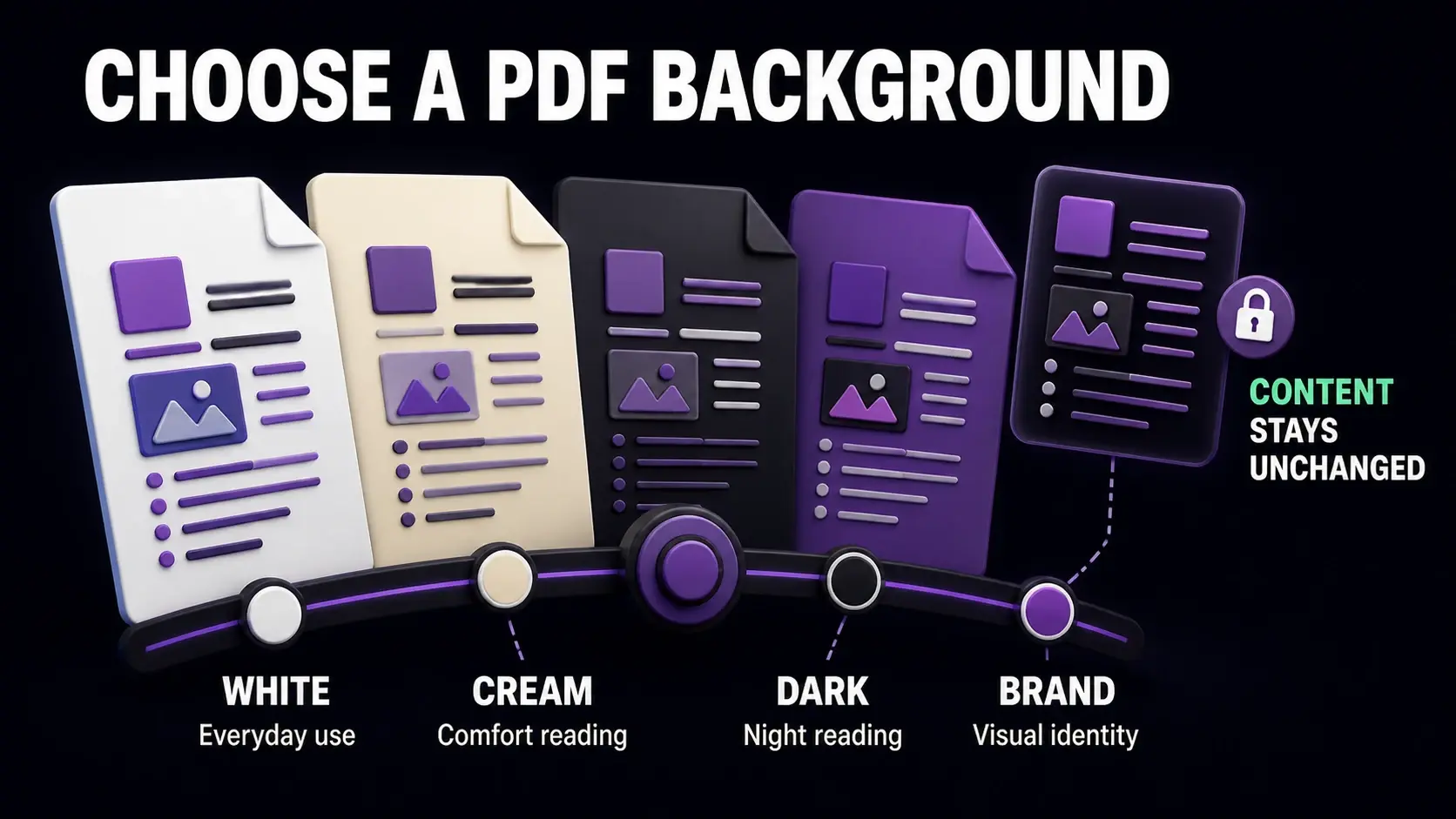
Choose white for everyday use, cream for comfortable reading, dark for night reading, or a brand color for visual identity.
The standard white background of most PDFs is fine in bright environments but harsh on eyes during extended reading sessions, especially on screens in low light. Changing the background colour of a PDF can make reading more comfortable, reduce screen glare, align the document with brand guidelines, or prepare it for a specific display context. Our PDF background colour tool lets you change any PDF background to any colour — dark mode, sepia, brand colours, or anything else — directly in your browser.
Why Change a PDF Background Colour?
There are four main reasons people change PDF backgrounds. Night reading: a dark grey or black background with white or light-coloured text reduces eye strain significantly in low-light environments, similar to the dark mode settings in modern apps. Eye comfort: a warm cream or light yellow background (similar to paper) is easier on eyes than pure white for long reading sessions and is a common setting for readers with dyslexia. Branding: organisations that distribute branded documents sometimes apply a brand background colour to PDFs to maintain visual consistency with other materials. Presentation: adding a coloured background can make a plain text document more visually engaging for audience materials or digital-first content.
The Difference Between Background Colour and PDF Dark Mode
Changing the PDF background colour permanently modifies the document — the output PDF has the new background and that is what anyone who opens it will see. PDF dark mode, by contrast, is a display setting in PDF reader apps (like Adobe Reader, Preview, or Foxit) that changes how the PDF looks on screen without modifying the file. Using a reader's dark mode is the easiest solution if you just want a more comfortable viewing experience for yourself — no file modification needed. Changing the background colour in the actual PDF is the right approach when you need the document itself to have a different appearance: for sharing, printing on coloured paper, or distributing a branded version.
How to Change PDF Background to Dark Mode
To create a dark-mode PDF permanently, use our background colour tool: upload your PDF, select a dark colour (dark grey like #1a1a1a or near-black works better than pure black, which can look harsh), and apply it. The tool adds the chosen background colour behind all existing content. For a complete dark mode look, pair this with our PDF invert tool, which inverts all colours including text and images — turning black text white and making the entire document dark-mode appropriate. Inverting alone changes both text and background; adding a background colour only affects the background layer.
Adding a Background Colour for Printing
Adding a background colour to a PDF that will be printed changes the print result, not just the screen appearance. A dark background requires the printer to apply ink across the entire page, which uses significantly more ink and toner than printing on white paper. For black-and-white (laser) printers, a dark background becomes a solid grey fill that can streak or look uneven. For colour inkjet printers, the ink cost increases substantially. If you need a coloured background for print, consider whether printing on pre-coloured paper (available in cream, grey, blue, and other colours from most paper suppliers) achieves the same effect more economically. Background colour changes in PDFs are most practical for digital distribution and screen reading.
Sepia and Warm Tones for Comfortable Reading
A sepia or warm cream background (#f5f0e8 or similar) replicates the appearance of aged paper and is popular for long-form reading. The warmth reduces the blue light emission associated with pure white screens, which is linked to eye strain and sleep disruption. Readers with visual sensitivities or dyslexia often report that off-white backgrounds improve reading comfort and comprehension compared to high-contrast black on white. If you regularly read long PDF documents (textbooks, research papers, ebooks in PDF format) on screen, try applying a warm background colour once and keeping that version as your reading copy. The difference in comfort over an hour of reading is noticeable.
Brand Colours and Corporate PDF Templates
Design teams and marketing departments often want PDFs to match brand guidelines. A company with a dark navy brand colour may want all external PDFs to carry a navy or light blue background. Applying a brand background colour programmatically ensures consistency across all documents in a series. If you are creating a set of branded documents, apply the background colour as a final step after all content is finalised — changing backgrounds after editing is easier than building the background into every version during drafting. For simple single-colour backgrounds, our tool handles any hex code or standard colour, so your exact brand colour can be matched precisely.
What Background Colour Change Does Not Do
It is important to understand what the background colour tool changes and what it does not. It adds a colour layer behind the existing content — text, images, and other elements remain unchanged. If your PDF has existing white boxes, coloured shapes, or white backgrounds on images, those are content elements and they are not affected by the background colour change. The tool changes the page canvas behind everything else. If you need to change the background of a specific region (like a text box with a white fill) rather than the entire page, that requires editing the source document in a word processor or design application and re-exporting as PDF.
Ready to Try FixMyPDF?
Free, private, no account — 79+ PDF tools that run entirely in your browser.