The Complete Guide to PDF Compression: Reduce File Size Without Losing Quality
Learn the best techniques for compressing PDF files while maintaining quality. Discover compression methods, when to use each level, and how to optimize PDFs for email, web, and print.
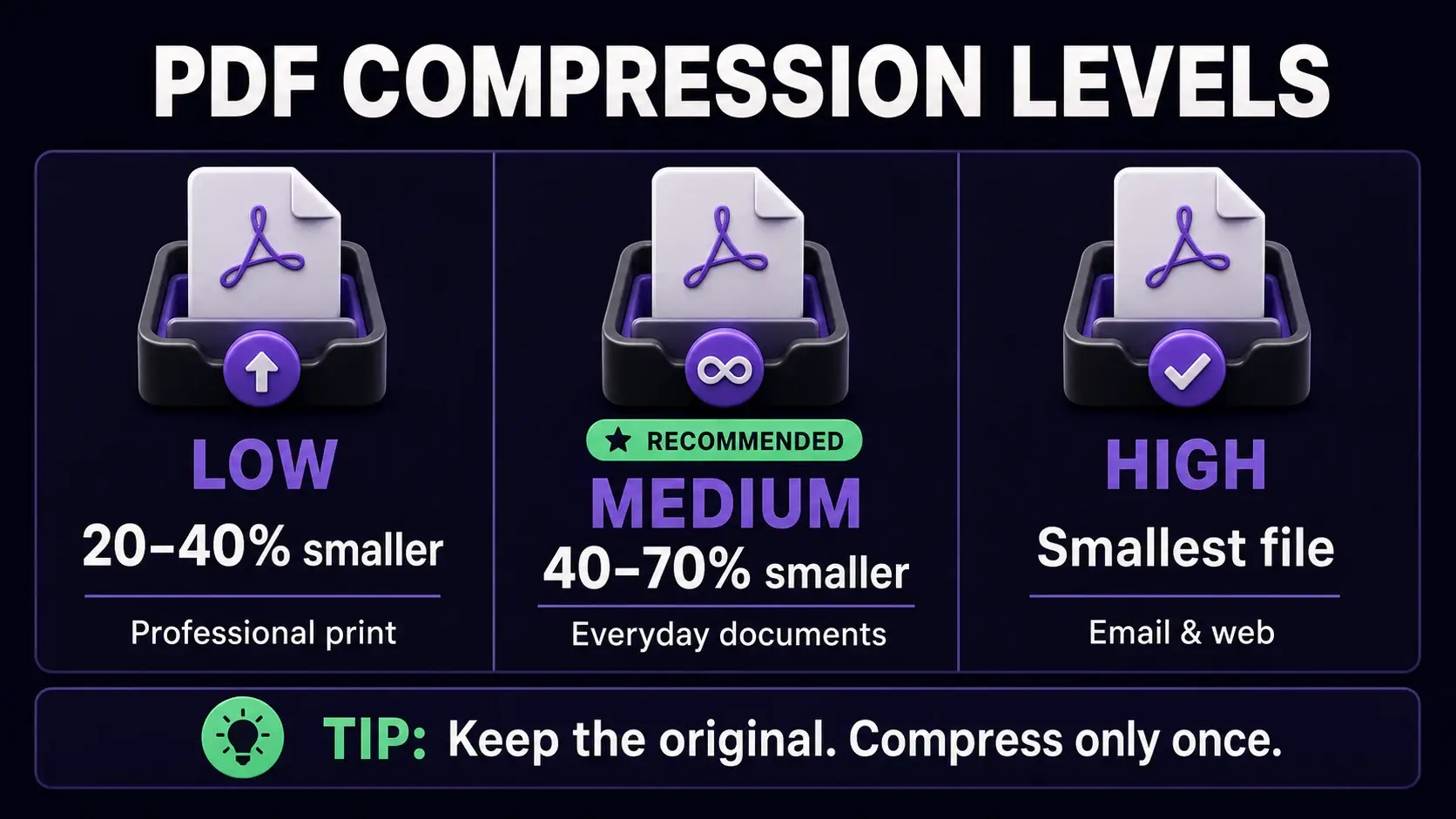
PDF compression levels: use Low for professional print, Medium for everyday documents, and High for email and web.
PDF compression is one of the most common tasks for anyone who regularly works with documents. A 50MB presentation that takes minutes to upload, an invoice that bounces back from an email server, a report that clogs a shared drive — these are problems compression solves. But doing it wrong means blurry text, unreadable charts, and a document nobody wants to use. This guide covers everything you need to compress PDFs correctly. You can also try our free PDF compressor to reduce file size instantly in your browser without any uploads.
Why PDF Files Get So Large
PDFs grow large for several reasons. High-resolution images embedded in the document are the most common cause — a single scanned page at 300 DPI can be several megabytes. Embedded fonts add size, especially when the full font file is included rather than just the characters used. Metadata, annotations, and revision history also accumulate silently over time. PDFs created from design software like Adobe InDesign or Illustrator tend to be larger than those exported from Word because they preserve more image data. Understanding the source of the bloat helps you choose the right compression approach.
The Three Levels of PDF Compression
Compression tools typically offer three levels. Low compression (sometimes called "high quality") makes minimal changes — it removes metadata and applies gentle image optimization. The file gets smaller but the reduction is modest, typically 20–40%. Medium compression (the recommended default for most use cases) re-encodes images at 88% JPEG quality at 1.8x resolution. You get 40–70% reduction with no visible quality loss for screen reading and standard printing. High compression pushes image quality to 85% at 1.5x resolution — best for files that need to be emailed or shared on the web where file size matters more than perfect print sharpness.
When to Use Each Compression Level
Choose Low compression for documents that will be professionally printed — brochures, marketing materials, or anything where image crispness is critical. Choose Medium compression for everyday work: internal reports, proposals, invoices, and documents shared via Google Drive or Dropbox. Choose High compression when you need to attach a PDF to an email (most providers limit attachments to 25MB), share on social media, or upload to a web form with file size restrictions. If you are unsure, start with Medium — it is the right choice for 80% of situations and produces excellent results for both screen and home printing.
Does Compression Affect Text Quality?
This is the most common concern, and the answer depends on your PDF type. For text-heavy documents like contracts, reports, and presentations, compression rarely affects readability — text is rendered from vector data and remains sharp at any zoom level. Images in the document are what gets compressed. For scanned documents (where the entire page is one large image), compression will affect sharpness at high magnification. A good rule: if your PDF was created digitally (exported from Word, Google Docs, or PowerPoint), Medium compression is safe. If it is a scanned document, use Low compression to preserve legibility.
How to Compress a PDF Without Uploading It
Most online compression tools require you to upload your file to a server, which raises privacy concerns for confidential documents. Our browser-based compressor works differently — it processes your PDF entirely in your browser using JavaScript and the HTML5 Canvas API. Your file never leaves your device, never touches a server, and is never stored anywhere. This makes it safe to compress contracts, medical records, financial statements, and any other sensitive document. After compression, you also see the exact before and after file sizes so you know exactly how much space you saved.
Other Ways to Reduce PDF Size
Compression is not the only way to shrink a PDF. If your document has pages you do not need, use a page remover to delete them before compressing — fewer pages means a smaller file regardless of compression. Converting a color PDF to black and white reduces image data significantly, sometimes by 50% or more. Removing metadata strips hidden information like author names, revision history, and software details that add bytes without adding value. For large multi-document projects, splitting the PDF into sections and compressing each separately can give better results than compressing the full document at once.
Common Compression Mistakes to Avoid
Compressing a file multiple times causes significant quality degradation — each pass re-encodes already-compressed images and introduces more artefacts. Always keep the original file and compress a copy. Do not use High compression on documents with fine text over images, technical diagrams, or QR codes — these require sharpness to function correctly. If your compressed file ends up larger than the original, it likely means the original was already heavily compressed (this is common with scanned PDFs processed by other tools). In that case, try a different compression level or accept the original size. Our tool shows you the compression statistics so you can evaluate the result before keeping it.
Ready to Try FixMyPDF?
Free, private, no account — 79+ PDF tools that run entirely in your browser.