TipsJanuary 5, 20255 min read
PDF Dark Mode: How to Read PDFs With a Dark Background
How to enable dark mode for PDFs — using reader settings, inverting PDF colours, or permanently changing the background. Includes tips for reducing eye strain during long reading sessions.
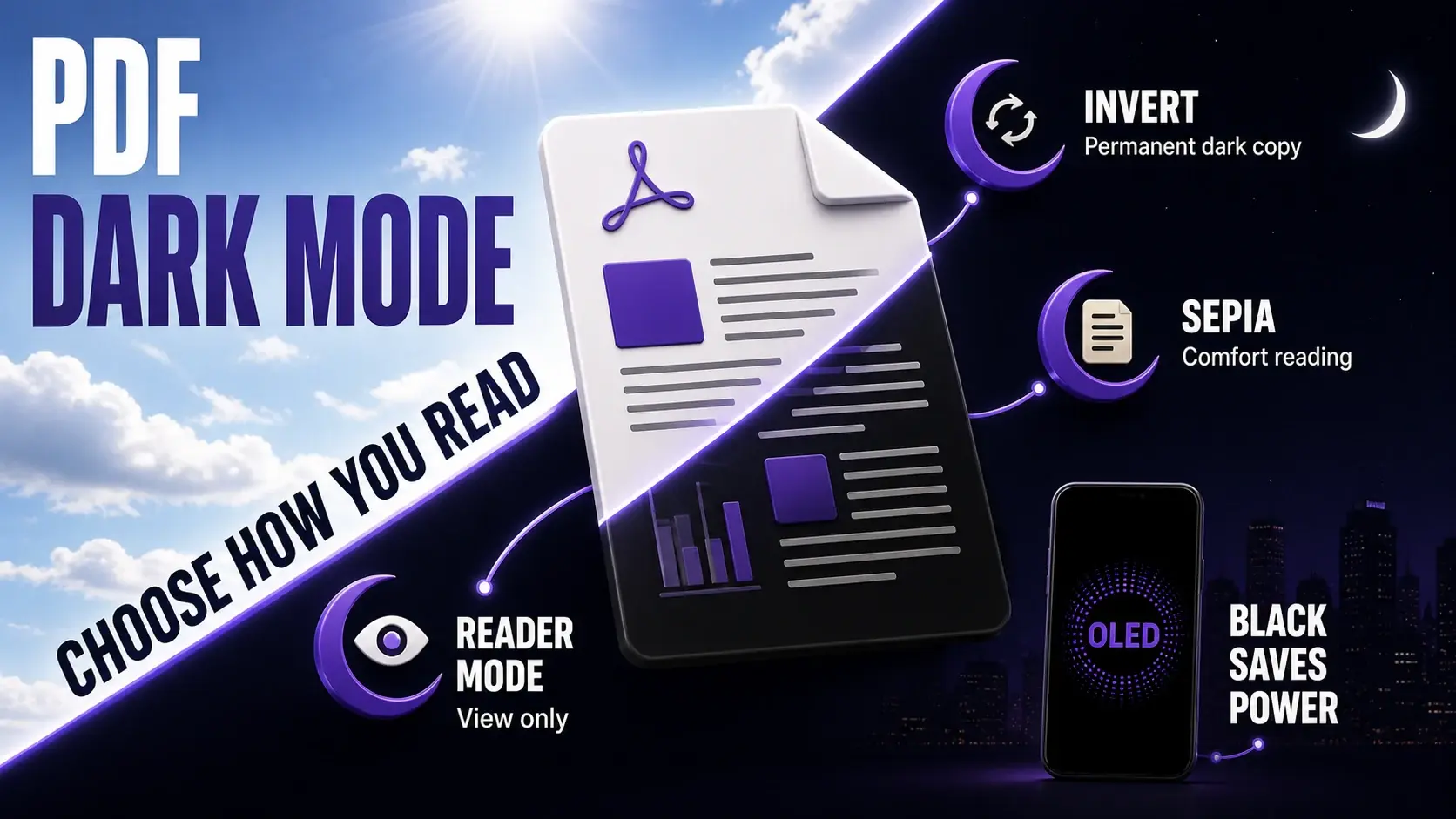
Reading a bright white PDF in a dark room feels like staring into a flashlight. Whether you are working late, reading in bed, or simply prefer dark interfaces, there are several ways to make PDF reading easier on your eyes. This guide covers every approach — from quick reader settings that require no file changes to permanent dark mode conversions you can share. Our PDF colour invert tool and background colour tool handle the permanent conversions in your browser.
The Quick Option: Use Your PDF Reader's Dark Mode
Before modifying any files, check whether your PDF reader already has a dark mode or "eye protection" setting. Adobe Acrobat Reader: go to Edit → Preferences → Accessibility → Replace Document Colours → check "Use High Contrast Colours" and select a dark scheme. Adobe Reader DC on Mac: Preferences → Accessibility → Custom Color → set page background to dark grey and document text to white. Foxit Reader: View → Reading Mode. Preview on Mac (Big Sur+): Preferences → PDF display options. Chrome and Edge built-in PDF viewer: these use your OS dark mode setting. Most modern PDF readers have some form of display adjustment — check these settings before making permanent changes to your documents.
Inverting PDF Colours: True Dark Mode
If your reader does not have a dark mode, or if you need a dark-mode version to share with others, our PDF invert tool permanently inverts all colours in the document. Black text becomes white, white backgrounds become black, and all other colours are inverted to their complements. The result is a true dark-mode PDF that looks correct in any viewer without any settings changes. This is the best approach for PDFs you read repeatedly — invert the file once and save the dark version alongside the original. Inverting works best on simple documents with black text on white backgrounds. Complex documents with coloured charts, photographs, or coloured text may look unexpected after inversion.
Adding a Dark Background Without Inverting Text
If you want a dark background but do not want to invert all colours (which turns images into negatives), use the background colour tool instead. This adds a solid colour layer behind the existing content without changing the text or images. Apply a dark grey (#1e1e1e or #2d2d2d) background to get a dark canvas behind the original content. Note that the text remains black — so for a proper dark mode appearance with white text, you need to both invert the content (making text white) and then ensure the background is dark. The combination of invert followed by background colour gives you the most control over the final appearance.
Warm Tones and Sepia for Eye Comfort
Dark mode is not the only way to reduce eye strain. A sepia or warm cream background reduces the harsh blue light that pure white screens emit without making the document as dark as a full dark mode. This is the equivalent of reading mode in browsers and e-readers. To apply it, use the background colour tool and enter a warm cream hex code (try #f5f0e6, #fdf6e3, or #ede8d5). The result is a document that looks and feels like reading on cream paper — significantly more comfortable for hour-long reading sessions than pure white. This approach is also safer for documents with images, since the image colours are unchanged.
Dark Mode for Scanned PDFs
Scanned PDFs (where each page is an image) behave differently from text-based PDFs when you apply dark mode. Inverting a scanned document turns the white page area black and the black text white — this usually looks good for standard typed documents. However, handwritten text, photos embedded in scanned documents, and pages with grey or coloured backgrounds may look unexpected after inversion since all colours are flipped. For scanned documents, the background colour approach is often better than inversion: applying a dark grey background without inverting reduces the contrast somewhat while maintaining readable black text. Test both approaches on your specific document to find what works best.
OLED Screens and Battery Life
On devices with OLED screens — most modern iPhones, Samsung Galaxy phones, and some laptops — a dark background significantly reduces battery consumption. OLED pixels produce their own light, and black pixels are simply turned off. A true black (#000000) background on an OLED screen uses near-zero power for that area, whereas a white background runs every pixel at full brightness. For mobile reading sessions where you need to conserve battery, inverting a PDF (which makes the background near-black on screen) can meaningfully extend the time before you need to charge. This is less relevant for LCD screens, which backlight the entire display regardless of the content colour.
Saving and Organising Dark Mode Versions
If you regularly read certain PDFs in dark mode — textbooks, reference manuals, research papers — it is worth creating a permanent dark mode version and keeping both. Name them clearly: "Annual Report 2024.pdf" and "Annual Report 2024 (Dark).pdf". The dark version is for reading; the original is for printing, sharing, or editing. Keep both in the same folder. If you use a cloud storage service like Google Drive or Dropbox, both versions sync automatically to all your devices, so you always have the comfortable reading version available regardless of which device you are on. This simple organisation step saves time compared to repeatedly converting the same document.
Ready to Try FixMyPDF?
Free, private, no account — 79+ PDF tools that run entirely in your browser.
Explore All 79+ Tools