
Back to Blog
GuideJanuary 4, 20259 min read

PDF Privacy Guide: How to Share Documents Without Exposing Private Information

A practical guide to PDF privacy — removing metadata, redacting sensitive content, using passwords, and choosing tools that do not store your files. For individuals and businesses.
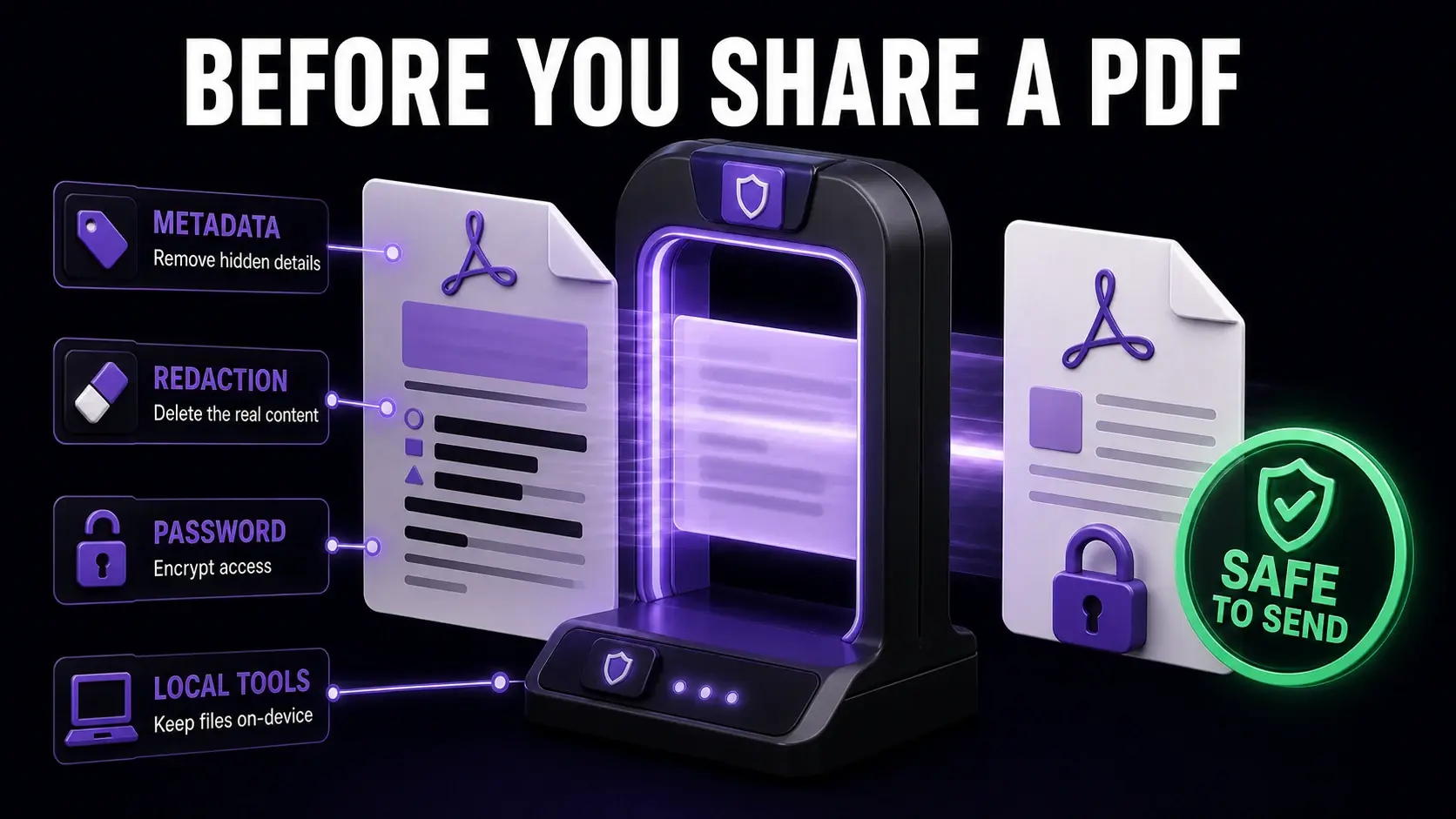
Sharing a PDF seems simple, but each document you send externally can carry more information than you intended. Author names in metadata, revision history, redacted text that is not truly removed, and sensitive content left unprotected all contribute to privacy risks that are easy to prevent once you know they exist. This guide covers the practical privacy steps everyone should take before sharing sensitive PDFs, whether you are a freelancer sending invoices, a business distributing contracts, or an individual sharing personal documents.

The Privacy Risks Most People Overlook

The most common PDF privacy mistakes are not dramatic data breaches — they are quiet, invisible information leaks that most people never notice. Metadata reveals the author's name (often from their Windows or Mac account), the company name from their Microsoft Office licence, the creation and modification dates, and the software used to create the document. Text that appears visually redacted (covered with a black box but not actually removed) can be selected and copied. Comments and tracked changes left in a document expose the editing history. Understanding these risks is the first step to eliminating them before they cause problems.

Removing Metadata Before Sharing

Removing metadata is the easiest and most impactful privacy step. Our metadata remover strips all standard and XMP metadata from a PDF in seconds. The document looks identical — all text, images, and layout are preserved — but the hidden information is gone. Make this a standard step before sending any PDF externally: invoices, proposals, contracts, reports, and applications. It takes five seconds and eliminates an entire category of unintended disclosure. For organisations distributing many documents, adding metadata removal to the document workflow (before the send step) ensures it never gets missed.

True Redaction vs. Black Box Overlay

There is a critical difference between true redaction and simply drawing a black rectangle over text. A black box overlay (adding a black shape on top of text) hides the text visually, but the underlying text data is still present in the PDF. Anyone can select the text under the black box and copy it — try it on a PDF with a visual redaction overlay and you will likely find the "redacted" text is fully readable. True redaction permanently removes the underlying content data. Our PDF redaction tool deletes the actual text or image data beneath the redacted area, replacing it with a permanent black region. Always use proper redaction for legally or commercially sensitive information.

Password Protecting Sensitive PDFs

For documents that should only be read by specific recipients, adding a password provides encryption-backed access control. Our PDF protection tool adds AES-256 encryption with a password of your choice. The document is unreadable without the correct password — even if intercepted in transit. Important practical points: never send the password in the same email as the protected document (send it via a separate channel like a phone call or text message). Use a strong password of at least 12 characters. Store the password in a password manager since encrypted PDFs cannot be recovered if the password is lost. For the highest security, combine password protection with metadata removal and redaction.

Choosing Privacy-Safe PDF Tools

The tool you use to process a PDF is itself a privacy consideration. Most online PDF services require you to upload your file to their servers. This means your document — potentially containing confidential information — passes through a third party's infrastructure, is stored temporarily (sometimes permanently) on their servers, and is subject to their privacy policies and security practices. FixMyPDF processes all files entirely in your browser using JavaScript. Your PDFs never leave your device, never touch our servers, and are never stored anywhere outside your browser tab. This browser-based approach is the only genuinely private option for processing sensitive documents online.

Managing PDF Access After Sharing

Once you have sent a PDF, you have limited control over what the recipient does with it. PDF permissions can restrict printing and copying, but these are easily bypassed with screenshot or re-scan workflows. Expiring links (if you share via a document management system rather than email) can limit access time. Watermarking with the recipient's name or email using our watermark tool creates a psychological and practical deterrent to unauthorised redistribution — if a watermarked document leaks, the watermark identifies the source. For highly sensitive documents, consider whether email is the right channel at all, or whether a secure document portal is more appropriate for the sensitivity level.

A Pre-Send Privacy Checklist

Before sending any sensitive PDF externally, run through this checklist. First, use the metadata viewer to check what the document currently contains — author name, creation software, dates. Second, use the metadata remover to strip all metadata. Third, check whether any content that should be redacted is actually removed using proper redaction, not just covered visually. Fourth, remove any tracked changes or comments that were part of the drafting process using our flatten tool. Fifth, if the document should only be read by the intended recipient, add password protection. This five-step process covers the major PDF privacy risks and can be completed in under two minutes.

Ready to Try FixMyPDF?

Free, private, no account — 76+ PDF tools that run entirely in your browser.

Explore All 76+ Tools
Report Bug
Send Feedback
Feature Request