
GuideMarch 24, 20268 min read
How to Merge PDF Files Free in 2026 (Every Platform)
The definitive guide to merging PDF files for free on Mac, Windows, iPhone, Android, and Chromebook. No software required.
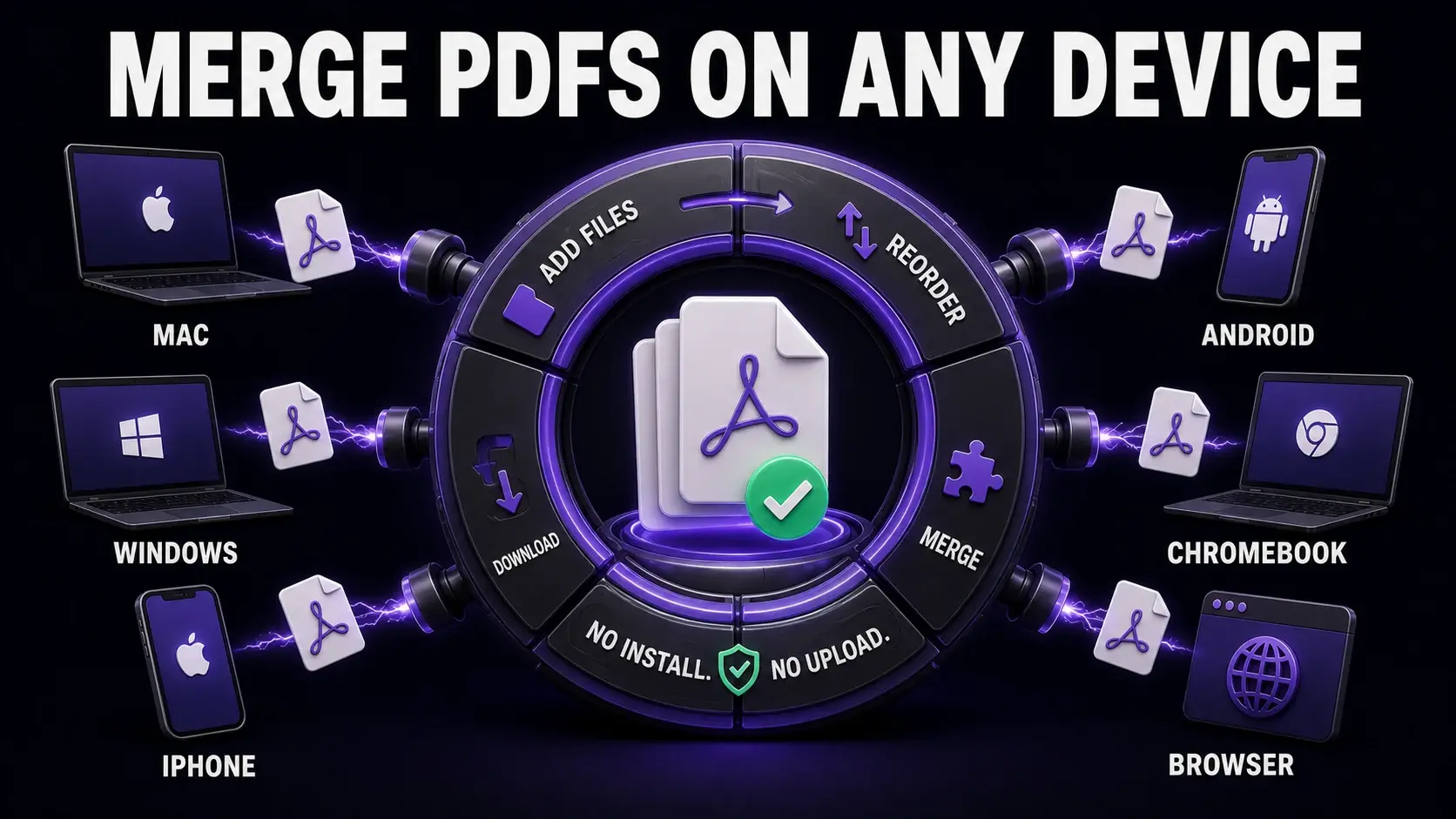
Merging PDFs is one of the most common document tasks — combining a cover letter and resume, assembling a multi-part report, or joining scanned pages into one file. This guide covers every free method across every platform in 2026. The fastest method for any device: FixMyPDF merge — runs in your browser, no upload, no limit.
Fastest Method: Browser (All Platforms)
Works on Mac, Windows, Linux, Chromebook, iPhone, iPad, and Android. Open any browser. Go to fixmypdf.in/tools/merge. Upload your PDFs. Drag to reorder. Click Merge. Download. Under 30 seconds for most documents. No account, no install, no file size limit.
On Mac: Preview (Built-In)
Open the first PDF in Preview. Enable the sidebar (View → Thumbnails). Drag the second PDF from Finder into the sidebar at the position you want. File → Export as PDF → Save. Works well for 2–3 files. For more files or complex ordering, FixMyPDF gives better control.
On Windows: No Built-In Tool
Windows has no native PDF merge feature. Use FixMyPDF in Chrome or Edge — the fastest free option. Alternatively: LibreOffice Draw (free download) can open and combine PDFs, but is slower.
On iPhone
Use FixMyPDF in Safari: go to fixmypdf.in/tools/merge, upload PDFs from the Files app, merge, download back to Files. The iOS Shortcuts app also has a "Combine PDF" action for power users.
On Android
Open Chrome. Go to fixmypdf.in/tools/merge. Upload PDFs from Files or Google Drive. Merge and download. Google Drive cannot merge PDFs.
Merging PDFs with Images
FixMyPDF merge accepts both PDFs and images (JPG, PNG) in the same operation. Upload a mix, arrange the order, and download a single PDF. Perfect for combining scanned pages with digital documents.
Privacy When Merging PDFs
Many merge tools upload your files to servers — a concern for contracts, financial records, or medical documents. FixMyPDF merges entirely in your browser. Files never leave your device. Read more: PDF Privacy Guide 2026.
Ready to Try FixMyPDF?
Free, private, no account — 79+ PDF tools that run entirely in your browser.
Explore All 79+ Tools