
PDF to JPG on iPhone: Convert Without Installing an App
Learn how to convert PDF to JPG on iPhone for free. Use Safari, the Shortcuts app, or a screenshot. No app download needed. Step-by-step guide.
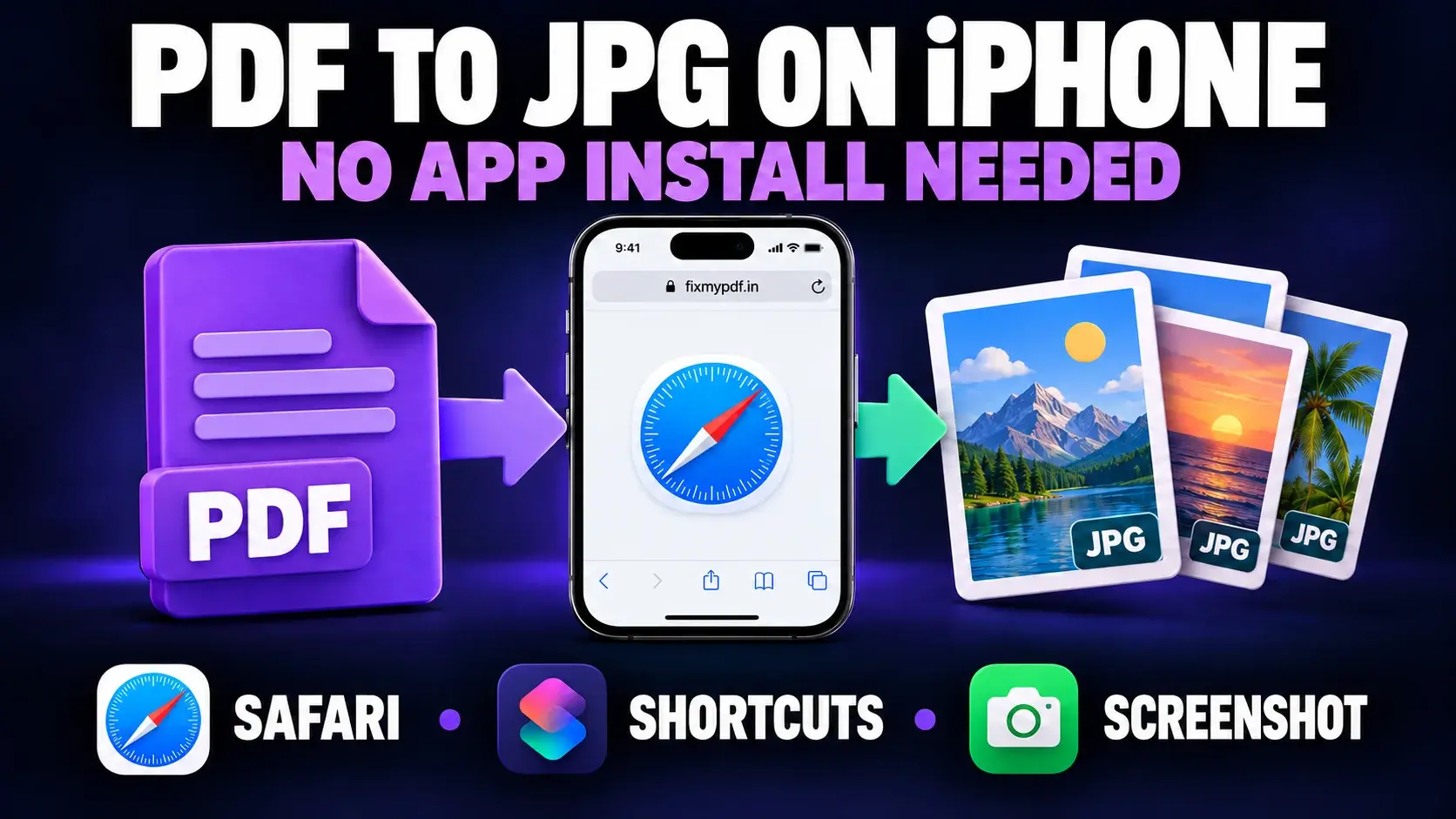
You have a PDF on your iPhone. You need it as a JPG. Maybe a form needs an image upload, or you want to post one page on social media, or a friend asked for a picture instead of a file.
The App Store has plenty of PDF converters, but most come with ads, subscriptions, or storage you don't want to give up. The good news is you don't need any of them. Your iPhone can do this job with the Safari browser you already have.
This guide covers three easy ways to convert PDF to JPG on iPhone without installing anything. You'll also see which one fits each situation.
Why Convert a PDF to JPG?
PDFs are great for documents, but they aren't always the right format. A JPG is better when you want to:
- Upload a page to a site that only accepts images
- Share a single page in WhatsApp, Instagram, or iMessage
- Add a page to a slide, post, or design
- Send a quick preview without sending the whole file
JPG files open everywhere, and they are usually small. That makes them easy to send, even on a slow connection.
Method 1: Use a Free Online Converter in Safari (Best Quality)
This is the fastest and cleanest way for most people. An online tool runs in your browser, so there's nothing to download.
Steps
- Open Safari on your iPhone and go to FixMyPDF's PDF to JPG tool.
- Tap Select file and pick your PDF from the Files app, iCloud Drive, or recent downloads.
- Wait a moment while the pages convert.
- Tap Download. Your JPG images are saved to Downloads in the Files app.
- To move an image to Photos, open it in Files, tap Share, then tap Save Image.
Why it works well
- It keeps text sharp because the tool renders each page as a proper image.
- It converts every page of a multi-page PDF, not just one.
- It works on any iPhone model and recent iOS version.
FixMyPDF works in the browser, so you don't need an account or another app. For PDFs with private details, choose a converter that processes files locally and always read its privacy note.
Method 2: Use the Built-In Shortcuts App (Free, Already on Your iPhone)
Apple's Shortcuts app comes with your iPhone. You can build a small shortcut that turns a PDF into images with a single tap.
Steps
- Open the Shortcuts app.
- Tap + to create a new shortcut.
- Add an action that takes your PDF as input and another that turns PDF pages into images.
- Add a Save to Photo Album action at the end.
- Turn on Show in Share Sheet so you can run it from any PDF.
Next time, open a PDF, tap Share, and pick your shortcut.
Pros
- Completely free and works offline
- Saves straight to Photos
- Fast once set up
Cons
- Setup takes a few minutes the first time
- It can feel confusing if you've never used Shortcuts
- Less control over image quality
This is a good choice if you convert PDFs often and want a one-tap shortcut.
Method 3: Take a Screenshot (Quick, but Lower Quality)
If you only need one page, a screenshot works in a pinch.
Steps
- Open the PDF in Files, Safari, or Mail.
- Zoom in so the page fills the screen.
- Press the side button and volume up button together.
- Tap the preview and crop out extra space.
- Tap Done, then Save to Photos.
Pros
- No setup
- Works in about ten seconds
Cons
- Long pages need several screenshots
- The image is not a clean page render
- Small text can look blurry
- The file is usually PNG, not JPG
Use this when speed matters more than quality.
Which Method Should You Use?
| Feature | Online converter (Safari) | Shortcuts app | Screenshot |
|---|---|---|---|
| Needs an app install | No | No | No |
| Setup time | None | 5 to 10 minutes | None |
| Image quality | High | Good | Low to medium |
| Multi-page PDFs | Yes | Yes | One page at a time |
| Works offline | No | Yes | Yes |
| Best for | Most people, most jobs | Frequent conversions | One quick page |
For most people, the online converter is the best pick. It's quick, gives the sharpest results, and has nothing to learn.
Tips for Better JPG Results
- Start with a good PDF. A blurry PDF produces a blurry JPG.
- Check the file size. If the JPG is too big, use an image compressor.
- Convert only the pages you need to save time and storage.
- Rename files so names such as page-1.jpg are easy to find.
- Save to Photos if you plan to share through WhatsApp or Instagram.
Common Problems and Quick Fixes
The file won't upload. Check your connection and try again. Large PDFs can take longer on mobile data, so switch to Wi-Fi if possible.
I can't find my JPG. Open Files and look in Downloads. In Safari, you can also tap the download icon in the address bar.
The PDF is password protected. Open it with the password, or use the PDF unlock tool before converting.
The image looks too small or blurry. Convert again with a higher quality setting if the tool offers one.
Final Thoughts
You don't need to fill your iPhone with apps to turn a PDF into a JPG. For most jobs, a free online converter in Safari is the quickest and cleanest choice. If you convert files often, a Shortcuts workflow can save time. If you only need one page right now, a screenshot will do.
Ready to try it? Open FixMyPDF's PDF to JPG converter in Safari and convert your first PDF to JPG in under a minute.
Frequently Asked Questions
Ready to Try FixMyPDF?
Free, private, no account — 79+ PDF tools that run entirely in your browser.
Explore All 79+ Tools