
PDF Page Sizes Explained: How to Fix A4, Letter, Legal and Mixed-Size Pages
Identify PDF page dimensions, understand A4 vs Letter vs Legal, fix mixed-size pages, prevent printing errors and resize pages without stretching content.
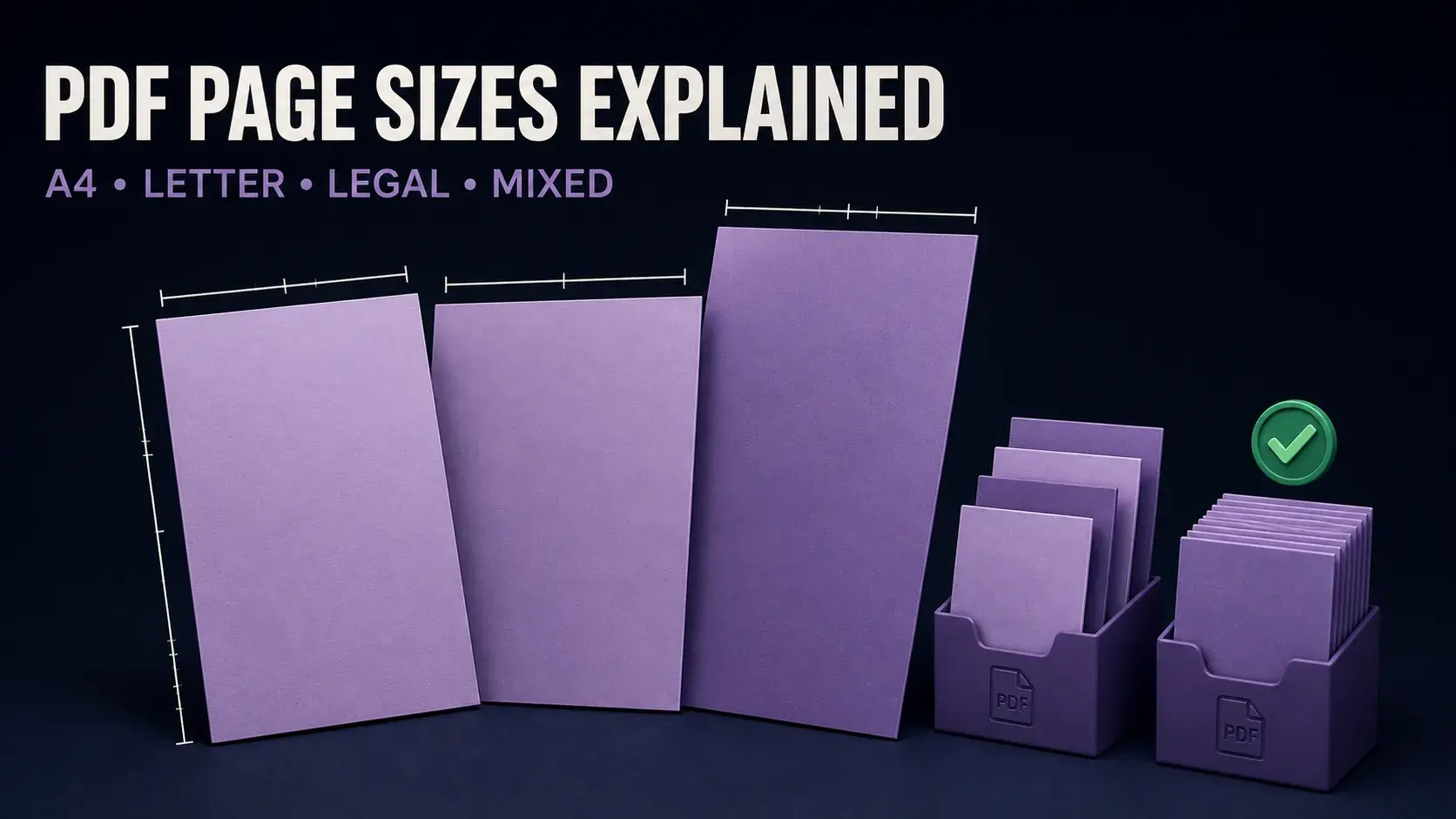
A PDF can contain A4, US Letter, Legal, landscape and custom-sized pages in one file. That is valid—but it can cause uneven zoom levels, printer tray changes, clipped edges and upload rejection. The safest workflow is measure first, decide whether the differences are intentional, choose the right transformation, and verify the result. Use Page Dimensions to inspect every page and Resize PDF only when the destination requires uniform dimensions.
PDF Page Size Quick Reference
| Page size | Millimetres | Inches | Approximate PDF points | Common use |
|---|---|---|---|---|
| A3 | 297 × 420 mm | 11.69 × 16.54 in | 842 × 1191 pt | Diagrams, posters, two A4 pages |
| A4 | 210 × 297 mm | 8.27 × 11.69 in | 595 × 842 pt | International office documents |
| A5 | 148 × 210 mm | 5.83 × 8.27 in | 420 × 595 pt | Booklets and small documents |
| US Letter | 215.9 × 279.4 mm | 8.5 × 11 in | 612 × 792 pt | US and Canadian office documents |
| US Legal | 215.9 × 355.6 mm | 8.5 × 14 in | 612 × 1008 pt | Contracts and legal documents |
| Tabloid / Ledger | 279.4 × 431.8 mm | 11 × 17 in | 792 × 1224 pt | Newsletters, drawings and spreads |
PDF coordinates use points, with 72 points per inch. ISO 216 defines the trimmed A-series sizes, including A4. The displayed point values above are rounded; a mathematically converted A4 page is approximately 595.28 × 841.89 points.
Page Size Is Not the Same as PDF File Size
“Make my PDF smaller” can mean two unrelated things:
- Page size is the physical canvas—A4, Letter, Legal or a custom width and height. It affects layout and printing.
- File size is storage consumption—such as 2 MB or 40 MB. It depends mainly on images, fonts, attachments and compression.
Changing an A3 page to A4 does not guarantee a smaller file in megabytes. Likewise, compressing a PDF may reduce megabytes without changing its page dimensions. This distinction prevents users from choosing the wrong tool.
How to Check the Size of Every PDF Page
- Open Page Dimensions.
- Select the PDF from your device.
- Choose All Pages when investigating mixed dimensions.
- Select Analyze Page Dimensions.
- Review the standard-size classification, visible dimensions, orientation and rotation for every page.
- Use the MediaBox and CropBox columns when a page’s underlying canvas differs from its visible area.
- Export JSON or CSV when you need an audit record or need to group many pages by size.
Do not inspect only the first page. A merged file may begin with an A4 cover, contain Letter body pages and finish with a Legal appendix. Pages that differ by only a few points can also be custom scanner crops rather than true standards.
A4 vs Letter: The Difference Is Small but Important
A4 measures 210 × 297 mm. Letter measures 215.9 × 279.4 mm. Letter is therefore approximately 5.9 mm wider, while A4 is approximately 17.6 mm taller.
| Scenario | What can happen at 100% | Fit-to-page result |
|---|---|---|
| A4 PDF on Letter paper | The paper is shorter; top or bottom content can be clipped | About 94% scale, with additional side margins |
| Letter PDF on A4 paper | The paper is narrower; left or right content can be clipped | About 97% scale, with additional top and bottom margins |
Those percentages describe ideal full-sheet geometry before accounting for a printer’s non-printable margins. Real print drivers may reduce the content slightly more. If exact physical scale matters—sewing patterns, rulers, labels or technical drawings—print a calibration page first and measure it.
Why PDFs End Up with Mixed Page Sizes
- Documents from countries using A4 and Letter were merged.
- A Legal contract was combined with Letter exhibits.
- A scanner’s automatic crop created slightly different dimensions per page.
- Receipts, ID cards or photographs were converted directly to PDF.
- A landscape chart or foldout was intentionally included.
- Slides, spreadsheets and word-processing documents used different export settings.
- A page was cropped by changing its CropBox while its MediaBox remained larger.
Mixed sizes are permitted in PDF. Viewers normally fit each page to the window, so the difference may be invisible until you switch to 100% zoom, inspect the dimensions, print the document or submit it to a system with strict requirements.
Mixed Size Is Different from Mixed Orientation
A document can have one page size but both portrait and landscape pages. An A4 landscape page uses the same sheet dimensions as A4 portrait with width and height exchanged. Rotation metadata can also make a portrait canvas appear landscape without changing the underlying box.
Do not resize a correct landscape chart merely to make every width-and-height row look identical. Check the standard-size classification and rotation together. Use Rotate PDF when orientation is wrong; resize only when the physical dimensions are wrong.
MediaBox, CropBox, TrimBox and BleedBox Explained
A PDF page is defined by rectangles rather than only a paper-size name:
- MediaBox: the required outer boundary of the physical page canvas.
- CropBox: the region normally displayed and printed.
- TrimBox: the intended finished boundary after production trimming.
- BleedBox: the production area extending beyond the trim so artwork can reach the edge.
- ArtBox: a boundary around meaningful artwork as defined by the creator.
If the CropBox is smaller than the MediaBox, a viewer may hide content that still exists outside the visible region. Cropping is therefore not always the same as deleting underlying objects. For print production, never replace a carefully prepared TrimBox or BleedBox blindly.
Choose the Right Fix: Preserve, Fit, Crop or Stretch
| Goal | Best method | Trade-off |
|---|---|---|
| Keep intentional Legal pages and foldouts | Preserve mixed sizes | Printing may require multiple trays or manual paper changes |
| Place every page inside one target without clipping | Scale proportionally to fit | White margins appear where aspect ratios differ |
| Fill the target page edge to edge | Scale and crop | Some content is removed |
| Keep content at its original physical scale | Add a larger canvas or print at Actual Size | Extra white space or clipping on smaller paper |
| Force exact width and height with no margins | Non-proportional stretch | Text, logos, circles and photographs become distorted |
For ordinary office documents, proportional fit is usually the safest normalization strategy. For print-ready artwork, forms, patterns and technical drawings, return to the source application or consult the receiving printer instead of applying an automatic transformation.
How to Make All PDF Pages the Same Size
- Keep an untouched copy of the original.
- Measure every page with Page Dimensions.
- Confirm the required target with the printer, portal, client or publisher.
- Open Resize PDF.
- Select A4, A3, A5, Letter, Legal or enter custom dimensions in millimetres.
- Leave Maintain aspect ratio enabled to prevent stretching.
- Resize and download the new copy.
- Inspect pages with the smallest margins, largest artwork, forms and links.
- Run Page Dimensions again to verify that all visible pages now use the intended size.
Resize PDF processes every page. It proportionally scales and centers each page’s visible content inside the chosen canvas. Because A4, Letter and Legal do not share one aspect ratio, uniform dimensions do not mean identical margins.
When You Only Need to Print Once
You do not always need to permanently change the PDF. In Acrobat’s print settings:
- Fit reduces or enlarges each page to the current printable area.
- Actual Size prints at 100%; anything outside the paper can be cropped.
- Shrink oversized pages reduces large pages but does not enlarge small ones.
- Custom Scale applies a percentage you choose.
- Choose paper source by PDF page size can direct Letter and Legal pages to suitable trays on a capable printer.
Use print scaling for a one-time output. Permanently resize a copy when a recipient, portal or repeatable workflow needs the PDF itself to report uniform dimensions.
Government Portals, Courts, Universities and Publishers
Submission systems may require “A4 only” or “8.5 × 11 inches” and reject a file because one appendix, scan or cover differs. Treat that as an exact document requirement, not merely a printing preference.
- Read the destination’s current specification.
- Analyze all pages, including attachments merged into the final PDF.
- Normalize a copy to the required target with aspect ratio preserved.
- Check that official seals, signatures, barcodes and page numbers remain visible.
- Confirm the final dimensions with a second analysis.
- Upload only after checking file-size, password and accessibility requirements separately.
Do not modify a digitally signed PDF unless invalidating its signature is acceptable. Any saved page-size change alters the document after signing.
Quality, Forms, Links and Accessibility Considerations
FixMyPDF scales existing page content rather than deliberately converting every page into an image. Vector text and shapes can therefore remain sharp. A low-resolution scan will not gain detail when enlarged, however.
Interactive elements require extra care. Links, annotations, comments, form widgets and signature appearances have coordinates of their own and may not transform exactly like the visible page content. After resizing:
- click important internal and external links;
- tab through and fill every form field;
- check comments and annotation positions;
- verify bookmarks still open the intended pages;
- test selectable text and reading order if accessibility matters;
- confirm that no digital-signature workflow was disrupted.
For regulated accessibility, archival conformance or press-ready production, use appropriate specialist validation after resizing.
Troubleshooting Mixed and Incorrect Page Sizes
| Symptom | Likely cause | Correct response |
|---|---|---|
| Some pages look tiny at 100% zoom | Pages use genuinely smaller dimensions | Measure all pages; normalize only if unintended |
| A4 page is clipped on Letter paper | Actual Size was used on shorter paper | Choose Fit or resize a copy to Letter |
| Every page has different small variations | Scanner auto-crop or inconsistent conversion | Normalize to the intended standard size |
| Content looks stretched | Aspect ratio was not preserved | Return to the original and resize with aspect ratio enabled |
| Large white margins appear | Source and target aspect ratios differ | Accept fit margins, choose cropping, or redesign at the source |
| Page looks cropped but MediaBox is larger | CropBox hides part of the canvas | Inspect both boxes before changing production geometry |
| Legal pages trigger another paper tray | Mixed-size printing is enabled | Use the correct tray or normalize a copy to Letter |
| Form fields shifted after resizing | Interactive coordinates did not scale with content | Use the original or repair the form in a capable editor |
Final Verification Checklist
- Every page reports the target dimensions.
- Portrait and landscape pages remain intentionally oriented.
- No text, logos, barcodes, signatures or page numbers are clipped.
- Margins look acceptable on the smallest-content and largest-content pages.
- Circles and square calibration marks remain undistorted.
- Links, forms, comments and bookmarks still work.
- Search, selection and reading order remain usable.
- A test print uses the expected scale and paper tray.
- The original file remains safely stored.
The central rule is not “make everything A4.” It is: identify the real geometry, understand the destination, choose the least destructive correction and verify the output.
Sources and Technical References
Frequently Asked Questions
Ready to Try FixMyPDF?
Free, private, no account — 79+ PDF tools that run entirely in your browser.
Explore All 79+ ToolsRelated Comparisons
What’s Inside a PDF File? How to Inspect Text, Fonts, Images, Forms, Scripts and Attachments
Read article →Best PracticesHow to Merge PDF Files: Best Practices for Combining Documents
Read article →TutorialN-Up PDF Printing Guide: How to Print Multiple Pages Per Sheet
Read article →GuideHow to Split Two-Page PDF Scans into Separate Pages
Read article →