
PDF Metadata Explained: How to View, Edit, and Remove Document Properties
What is PDF metadata, what does it reveal, and how do you manage it? Complete guide to viewing, editing, and removing PDF document properties for privacy and organisation.
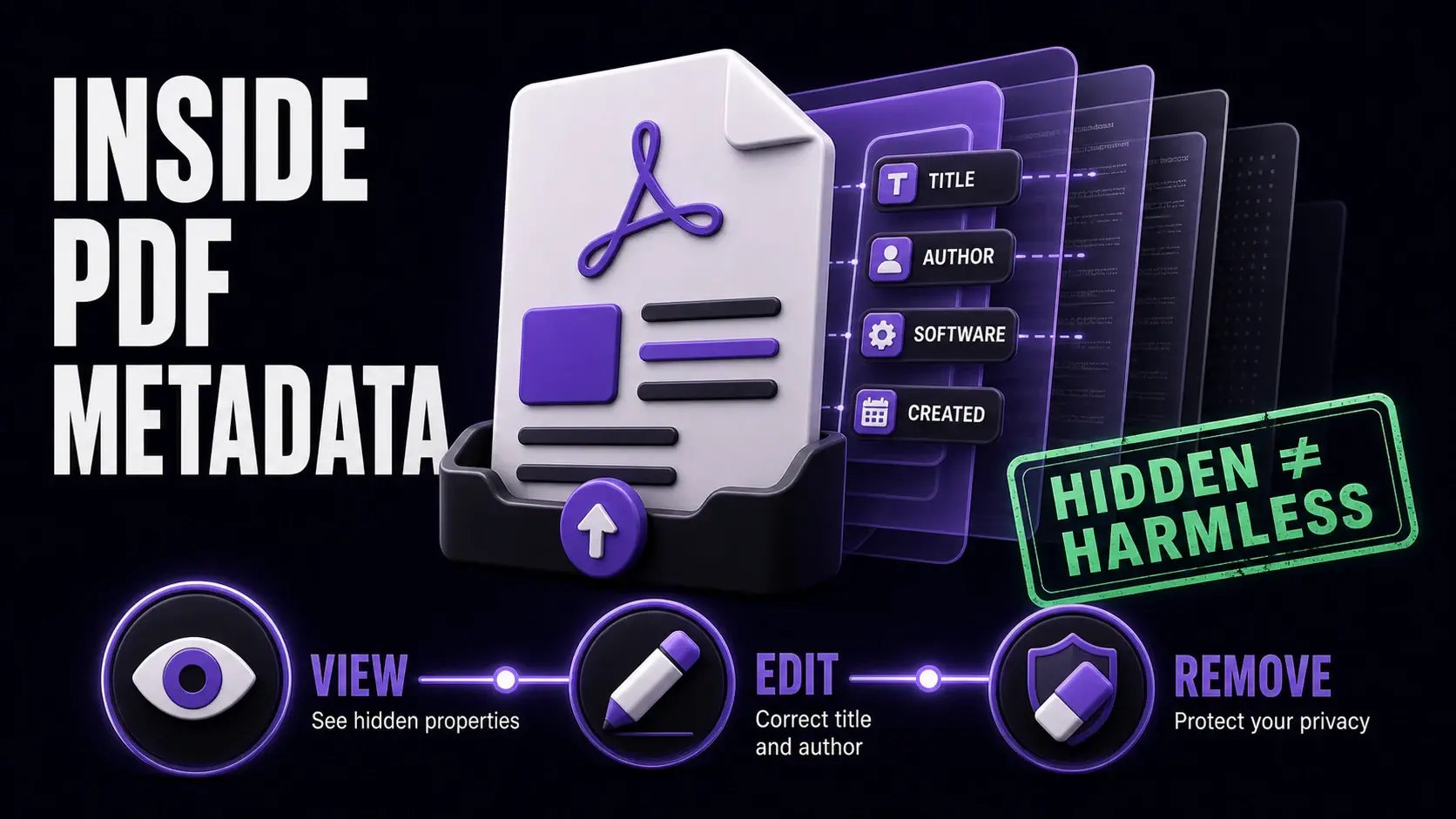
Every PDF you create or receive carries hidden information that is invisible when reading the document but easily accessible to anyone who knows where to look. This hidden data — called metadata — can reveal who created the document, when, on what software, and sometimes what the document previously contained. For personal use this is often harmless, but for business, legal, and privacy-sensitive documents, unmanaged metadata is a genuine risk. This guide explains what PDF metadata is, how to read it, and how to control it.
What Information Does PDF Metadata Contain?
Standard PDF metadata includes the document title, author name (often automatically populated from the OS user account), subject, keywords, the application used to create it (e.g., "Microsoft Word for Microsoft 365"), the PDF producer (e.g., "Adobe PDF Library"), creation date, and last modification date. Some PDFs also carry custom metadata fields added by document management systems. Beyond these standard fields, PDFs created by Microsoft Office applications often carry XMP (Extensible Metadata Platform) data that includes additional details like the company name from the Office licence. Use our metadata viewer to see exactly what any PDF contains.
Why Metadata Matters for Privacy
The author field in a PDF is often populated automatically with the Windows username or macOS account name of whoever created the document. If that name is a personal name, it gets shared with every recipient of the document. Legal firms regularly find that PDFs received from opposing parties reveal internal author names, suggesting which attorney worked on the document. Job application CVs sent as PDFs can reveal the applicant's computer account name, which may differ from their professional name. Business proposals can reveal the company's internal software stack. Before sending any PDF externally, use our metadata remover to strip this information.
How to View PDF Metadata
You can view basic PDF metadata in most PDF viewers. In Adobe Reader or Acrobat: go to File → Properties → Description tab. In Chrome's built-in PDF viewer: press Ctrl+I or Cmd+I. In Preview on Mac: go to Tools → Show Inspector → Information tab. Our online metadata viewer shows all metadata fields including XMP data that is not always visible in standard viewers, and it works without installing any software — just upload your PDF and the metadata is displayed instantly. This is useful for quickly auditing a document before sharing it.
Editing PDF Metadata
Editing metadata is useful for document management and organisation. Adding the correct title, subject, and keywords makes PDFs easier to find in search results, document management systems, and file archives. When a PDF has the wrong author name (perhaps because it was created on a shared computer), editing the author field corrects the record. Our metadata editor lets you update any standard metadata field: title, author, subject, keywords, and custom fields. Well-maintained metadata is particularly valuable for organisations with large document archives — it enables consistent indexing, filtering, and retrieval without relying on file names alone.
Removing Metadata for Privacy
Removing metadata entirely is the safest approach before sharing sensitive documents. Our metadata remover strips all standard and XMP metadata from a PDF in seconds, producing a clean document with no identifying information. The output PDF looks identical to the original — all visible content is preserved, only the hidden metadata is removed. This is a one-way operation: once metadata is removed, it cannot be recovered from the cleaned file (though the original file is unaffected if you keep it). For routine external document sharing, making metadata removal a standard step before sending is a simple privacy practice with significant upside.
Metadata and SEO for Publicly Available PDFs
For PDFs published on public websites — white papers, product guides, annual reports — metadata has the opposite effect: it helps. Well-populated metadata (accurate title, descriptive keywords, clear subject) helps search engines understand and index the document correctly. Google and Bing can read PDF metadata and use it as a ranking signal. The document title in metadata appears in search results as the page title. Keywords in metadata supplement the body text for search relevance. If your organisation publishes PDFs for marketing or information purposes, treating PDF metadata the same way you treat HTML meta tags — as searchable, indexable content — improves discoverability.
Metadata in Different PDF Creation Workflows
Where metadata comes from depends on how the PDF was created. Microsoft Word populates author from the Windows user account and company from the Office licence. Adobe InDesign and Illustrator carry full XMP metadata including document history. PDF printers (printing to PDF from any application) typically carry minimal metadata. Scanned PDFs created by scanner software often carry the scanner model and firmware version. PDFs from web services may carry the service name and creation timestamp. Knowing the source of a PDF helps predict what metadata it carries. When in doubt, use the metadata viewer to check before sharing any document you did not personally create from scratch.
Ready to Try FixMyPDF?
Free, private, no account — 76+ PDF tools that run entirely in your browser.
Explore All 76+ Tools


