How to Merge PDF Files: Best Practices for Combining Documents
Learn how to merge PDF files effectively. Covers page ordering, quality preservation, common use cases, and tips for combining documents on Mac, Windows, and mobile.
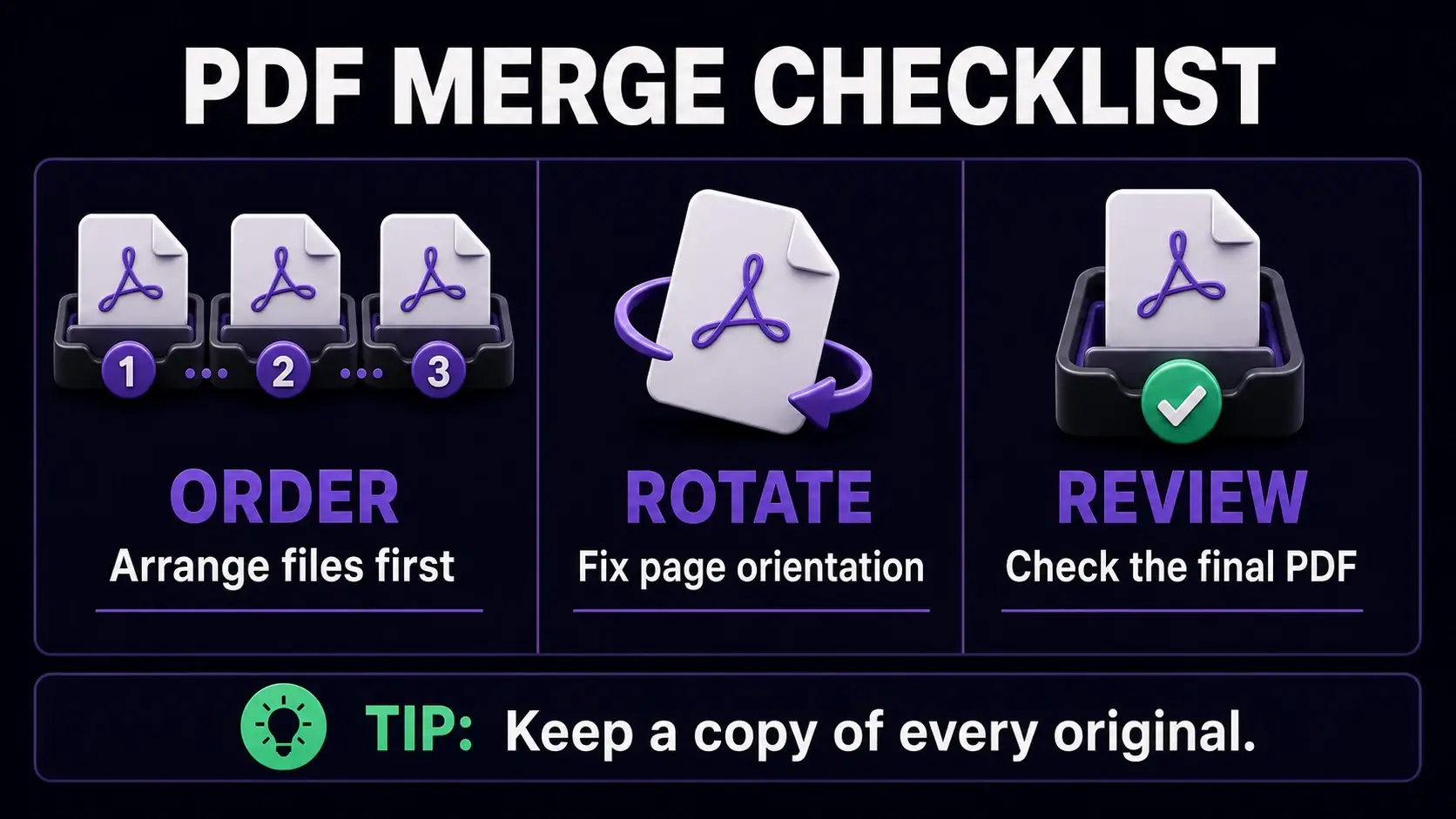
Before merging PDFs, arrange the files, correct page orientation, and review the final combined document.
Merging PDFs is one of the most frequent document tasks in any office workflow — combining a cover letter with a resume, assembling a multi-part report, combining invoices for accounting, or joining scanned documents into a single archive. Done correctly, the result is a clean, professional PDF that is easy to navigate. Done carelessly, you end up with mismatched page sizes, wrong orientations, and a confusing document order. Our free PDF merger lets you combine unlimited PDFs in your browser with drag-and-drop ordering and no file size limits.
Planning the Page Order Before You Merge
The most important step in merging is deciding the order before you start. For a job application, the order might be: cover letter, resume, portfolio samples, reference letters. For a financial report: executive summary, main report, appendices, supporting data. List your files and think through the logical reading flow. Our merger shows you the files in a list before merging and lets you drag to reorder them or use arrow buttons to move files up or down. The Sort A-Z and Sort Z-A buttons are useful when you have numbered files (Report_01.pdf, Report_02.pdf) that you want in alphabetical sequence automatically.
Checking Page Orientations Before Merging
Nothing disrupts a merged document more than pages randomly rotating between portrait and landscape. Before merging, open each PDF and check that all pages are in the correct orientation. If any pages need rotating, use the rotate PDF tool to fix them before merging. This is especially important when combining documents from different sources — a scanned letter might be in portrait while a spreadsheet is in landscape. Our merger preserves whatever orientation each page has, so what you put in is what comes out. Fix orientation issues at the source, not after merging.
Merging PDFs Without Losing Quality
Our PDF merger copies page data directly from each source file into the combined document without re-encoding, re-rendering, or compressing anything. This means the merged PDF has exactly the same page quality as the originals. Text remains sharp, images retain their original resolution, and any interactive elements like hyperlinks are preserved. This is different from some tools that rasterize (convert to image) each page during merging — that approach degrades text quality. If your merged PDF looks blurry, the source files were already low quality, not the merging process. Check your source files before concluding that merging caused quality loss.
Handling Different Page Sizes in One Document
Sometimes you need to combine documents with different page sizes — a standard A4 report with a legal-size appendix, or Letter-size pages with A3 diagrams. Our merger handles mixed page sizes naturally: each page retains its original dimensions in the combined document. PDF viewers like Adobe Reader and Chrome handle mixed-size PDFs fine. However, printing a mixed-size PDF can be problematic — some printers will scale all pages to one size, distorting the others. If the final document will be printed, consider resizing all pages to a uniform size using the resize tool before merging to avoid printing surprises.
Common PDF Merging Use Cases
Job applications: combine cover letter + resume + portfolio into one file for easy submission. Legal documents: combine agreement pages, schedules, and exhibits into a single contract. Accounting: batch multiple invoices into a monthly summary PDF for expense reporting. Academic: combine research chapters, bibliography, and appendices into one thesis PDF. Photography: join multiple pages of a photo book layout. Healthcare: combine referral letters, test results, and medical history for a doctor visit. In each case, the workflow is the same — prepare the individual files, check their order and orientation, merge, then optionally compress the result if file size is a concern.
Merging PDFs on Mac, iPhone, and Android
Our merger runs entirely in the browser, so it works on every platform. On Mac: open the tool in Chrome or Safari, click Select PDF Files to choose multiple files from Finder, arrange the order, and merge. On iPhone/iPad: open the tool in Safari, tap Select PDF Files, choose files from the Files app or iCloud Drive, and download the result to your device. On Android: open the tool in Chrome, select files from your Downloads or Google Drive, and save the merged PDF. No app installation, no account creation, and no file size restriction on any platform. The entire process takes under a minute for most documents.
What to Do After Merging
Once your documents are merged, a few additional steps improve the final result. Add page numbers using the page numbers tool so readers can navigate a long combined document. Add a cover page using the cover page tool for formal reports or submissions. If the merged file is large, compress it to reduce file size for easier sharing. If the merge included confidential source documents, remove metadata from the final file to strip author names and software details. For very long merged documents, consider whether a split into logical sections would make distribution easier.
Ready to Try FixMyPDF?
Free, private, no account — 79+ PDF tools that run entirely in your browser.