
Convert PDF to Dark Mode Without Uploading Your Files
Learn how to convert a PDF to dark mode without uploading it. Use a free browser-based tool that keeps your file private on your own device.
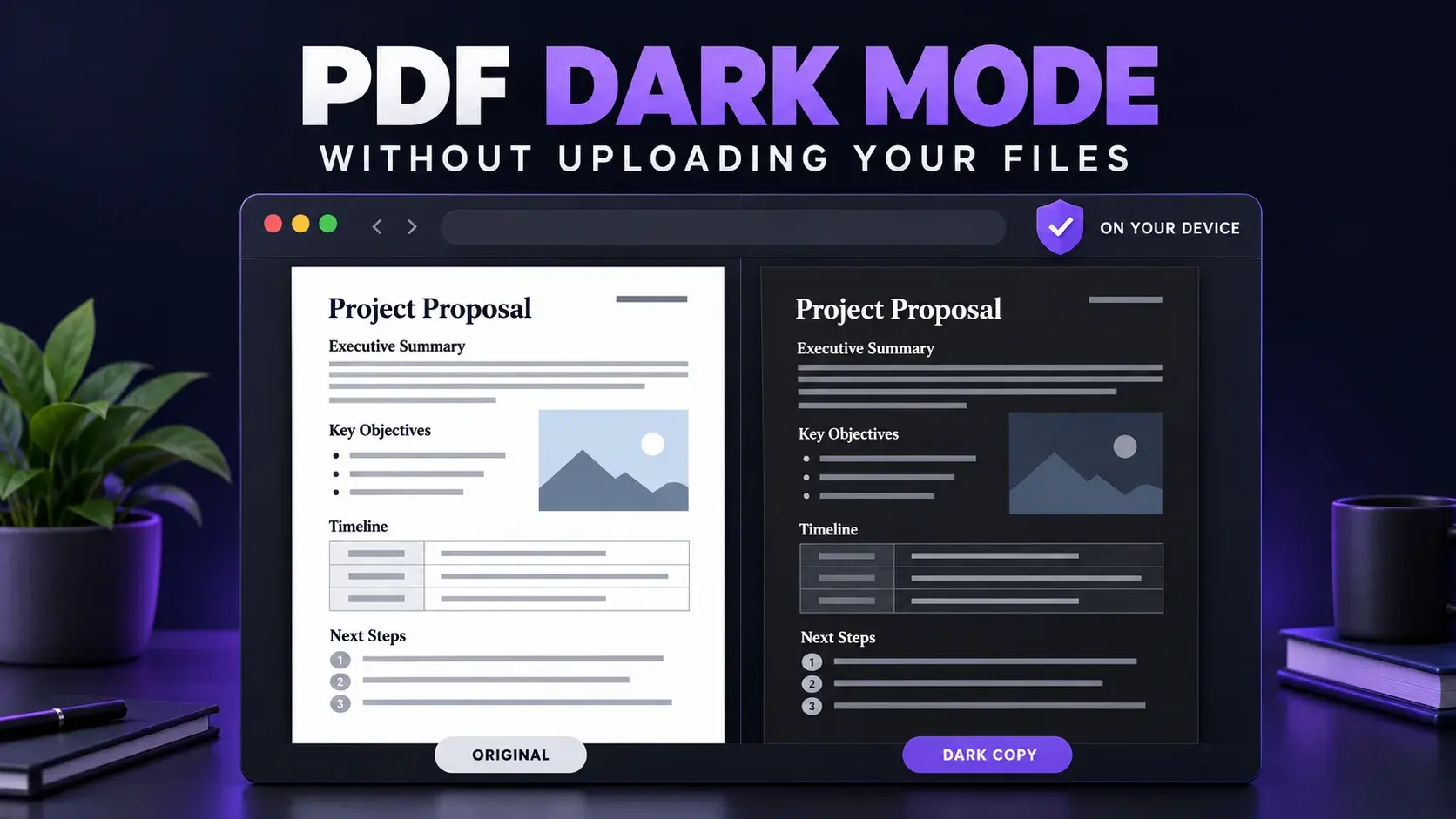
Reading a bright white PDF at night feels like staring into a flashlight. Dark mode fixes that. But there is a catch most people skip past: many online converters ask you to upload your file first. If that file is a contract, a medical report, or an unpublished paper, you may not want it sitting on a stranger's server.
The good news is you don't have to. You can convert a PDF to dark mode right inside your browser, and the file never has to leave your device.
Quick answer: To convert a PDF to dark mode without uploading it, use a browser-based tool that processes the file locally, like the FixMyPDF PDF Dark Mode tool. Select your PDF, convert, and download the dark copy. Your original file stays untouched.
This guide explains your options, walks you through the steps, shows you how to check that nothing gets uploaded, and covers which PDFs look good in dark mode and which don't.
Key Takeaways
- There are two kinds of PDF dark mode: a viewing setting in your reader, and a new dark copy of the file.
- Many online converters upload your file. Browser-based tools process it on your own device instead.
- You can test this yourself in about a minute, using offline mode or your browser's network panel.
- Plain text PDFs convert best. Photos, charts, and scans need more care.
- Always keep the original. Use the dark copy for reading only.
What Does Dark Mode for a PDF Actually Mean?
People use the term for two different things, and mixing them up causes confusion.
Viewer dark mode. Your PDF reader changes how the page looks on screen. The file itself does not change. Close the reader or open the file somewhere else, and it is white again.
A dark copy. A tool changes the colors inside the PDF and saves a new file. Dark background, light text. It looks the same in any viewer, on any device, and you can send it to your phone or tablet.
Both are useful. Viewer mode is quick. A dark copy is better when you read the same document often or on several devices.
Why You Should Think Twice Before Uploading a PDF
Not every upload-based tool is unsafe. But when you upload a file, you lose control of it. You can't see where it is stored, how long it stays, or who can access it. Here is why that matters for something as simple as a color change.
- Private content. PDFs often hold personal IDs, bank statements, medical notes, contracts, and school work.
- No way to verify. A privacy promise on a website is just words unless you can check it.
- Limits and accounts. Server-based tools often cap file size, limit daily use, or ask you to sign up.
- Slower. You wait to upload, wait to process, then wait to download.
When the job is just flipping colors, there is no good reason to send the file anywhere. Your browser can do it. If you want to read more about how this works, see our guide on why client-side PDF processing matters for privacy.
Ways to Get a Dark Mode PDF (Compared)
| Method | Changes the file? | File leaves your device? | Best for |
|---|---|---|---|
| Reader settings (for example, accessibility colors in Adobe Acrobat Reader) | No, view only | No | Quick reading in one app |
| Browser-based local converter (like FixMyPDF) | Yes, makes a dark copy | No | A dark copy you can open anywhere |
| Online converter that uploads your file | Yes | Yes | Non-sensitive files only |
| Desktop software or scripts | Yes | No | Tech-savvy users and batch jobs |
A few notes on this table:
- Reader settings work, but they are tied to that one app. Switch to your phone and the page is white again.
- Upload converters are fine for a public brochure. Think twice for anything private.
- Scripts and open-source tools can work well, but some need extra software installed first and do best on simple, text-only pages.
- Browser-based tools give you the best mix: no install, no upload, and a file you can keep.
How to Convert a PDF to Dark Mode Without Uploading (Step by Step)
Here is the process using FixMyPDF. Everything runs in your browser.
- Open the tool. Go to the PDF Dark Mode converter.
- Select your PDF. Drag and drop the file onto the page, or click to browse. The file is read by your browser, not sent to a server.
- Check the conversion limits. The current tool applies full color inversion to every page. It does not preserve original photo or chart colors.
- Convert. Click the convert button and wait a few seconds.
- Download and check. Save the new file, open it, and flip through a few pages. Look at the text, the images, and the last page.
A good starting point: If your PDF has photos or colorful charts, test a short sample first. The current tool inverts all colors, so a reader-only dark mode may be a better choice when original image colors matter.
Name the new file clearly, like Biology Notes (Dark).pdf, so you never mix it up with the original.
How to Check That Your File Is Not Being Uploaded
Don't just take a tool's word for it. Here are two simple tests.
Test 1: The offline test.
- Open the tool page and select a harmless sample PDF while online so the PDF processing worker can finish loading.
- Turn off your Wi-Fi or switch on airplane mode.
- Select a PDF and run the conversion.
If the tool still converts your file with the network disconnected, that conversion is happening on your device. The PDF processing worker must be loaded first. An offline conversion does not by itself prove what the site might transmit when a connection returns.
Test 2: The network panel.
- Press F12 in your browser to open developer tools, then click the Network tab.
- Run the conversion.
- Inspect requests made while selecting and converting the PDF, including their request payloads. Distinguish document transfers from downloads of scripts, fonts, and processing libraries. Request size alone does not prove whether a document was uploaded.
This second test is more technical. Inspecting file-transfer payloads provides stronger evidence than assuming every network request contains your PDF.
Which PDFs Look Good in Dark Mode?
Not every document survives color inversion equally. Here is what to expect.
| PDF type | What to expect | Tip |
|---|---|---|
| Plain text documents | Usually looks great | Default settings are fine |
| Textbooks with diagrams | Diagrams will also be inverted | Check every diagram or use reader-only dark mode |
| Photos and colorful charts | Can look strange if fully inverted | Use reader-only color settings if original colors are essential |
| Scanned typed pages | Often fine | Test a few pages first |
| Handwritten scans | Can look odd | Compare a sample or skip dark mode |
| Slides with colored backgrounds | Mixed results | Review a sample or use reader-only dark mode |
One more tip: the current FixMyPDF conversion renders pages as images and creates a new PDF from them. The dark copy does not retain the original selectable text layer, links, or interactive form fields. Use reader-only dark mode if you need those features, and keep the original for searching, copying, printing, or signing. The dark copy can also be larger than the original.
A Simple Example
Imagine a student named Arjun. This is a made-up example, but it is a common situation. He has a 200-page textbook PDF and a study session that runs past midnight. The white pages hurt his eyes and light up the whole room.
He first tries an online converter, then sees it wants to upload the whole file and asks him to sign up. He closes the tab. Instead, he opens a browser-based tool, drops in the file, checks how the diagrams look after inversion, and downloads the dark copy. He checks a few pages, saves it next to the original, and reads in peace. The file never left his laptop.
Pros and Cons of Converting a PDF to Dark Mode
Pros
- Easier on the eyes in dim rooms
- Less screen glare at night
- Can save some battery on OLED screens
- A dark copy works in any viewer and on any device
- No upload means better privacy
Cons
- Images and charts can look odd because their colors are inverted
- Not ideal for printing, since it would use a lot of ink
- You end up with two versions of the file to manage
- Not every document converts equally well
Common Mistakes to Avoid
- Replacing the original. Always keep the original file. Save the dark version separately.
- Printing the dark copy. Print from the original instead.
- Judging by one page. Check the first, middle, and last pages before you trust the result.
- Converting image-heavy files without a sample. Review photo and chart colors before converting the whole document.
- Sending the dark copy as an official file. Use the original for signing, submitting, or sharing with others.
- Trusting privacy claims without checking. Run the offline test once on any tool you plan to use often.
Other Ways to Make PDFs Easier on the Eyes
Dark mode is not the only option. If it feels too harsh, try these:
- Use a warm cream background instead of pure black. Our background color tool can do this.
- Lower your screen brightness at night.
- Increase text size, or zoom in a little.
- Take short breaks during long reading sessions.
For a full overview of every approach, including sepia reading and reader settings, read our guide to PDF dark mode and reading with a dark background. If your PDF already looks inverted or wrong, see why a PDF looks wrong in dark mode.
Dark Mode, Invert Colors, or Background Color: Which One?
| Tool | What it does | Use it when |
|---|---|---|
| PDF Dark Mode | Creates a dark copy by inverting page colors | You want a dark reading copy and can accept inverted images |
| Invert PDF Colors | Flips all colors in the file | You want a simple full inversion |
| Background Color | Adds a solid color behind the content | You want a softer tone like cream or grey |
All three run in your browser, so your files stay on your device.
Frequently Asked Questions
Final Thoughts
A dark mode PDF should make reading easier, not create a privacy problem. You don't need to upload a file just to change its colors. A browser-based tool does the job on your own device, and you can prove it in a minute.
Keep your original, test a few pages, and check how inverted images look. When you are ready, try the FixMyPDF PDF Dark Mode converter. It is free, needs no account, and keeps your file with you.
Ready to Try FixMyPDF?
Free, private, no account — 79+ PDF tools that run entirely in your browser.
Explore All 79+ Tools