
How to Crop a PDF Online and Trim Margins Safely
Learn how to crop a PDF online, trim white margins, and avoid cutting off content. Understand CropBox limits, privacy risks, and when to use redaction.
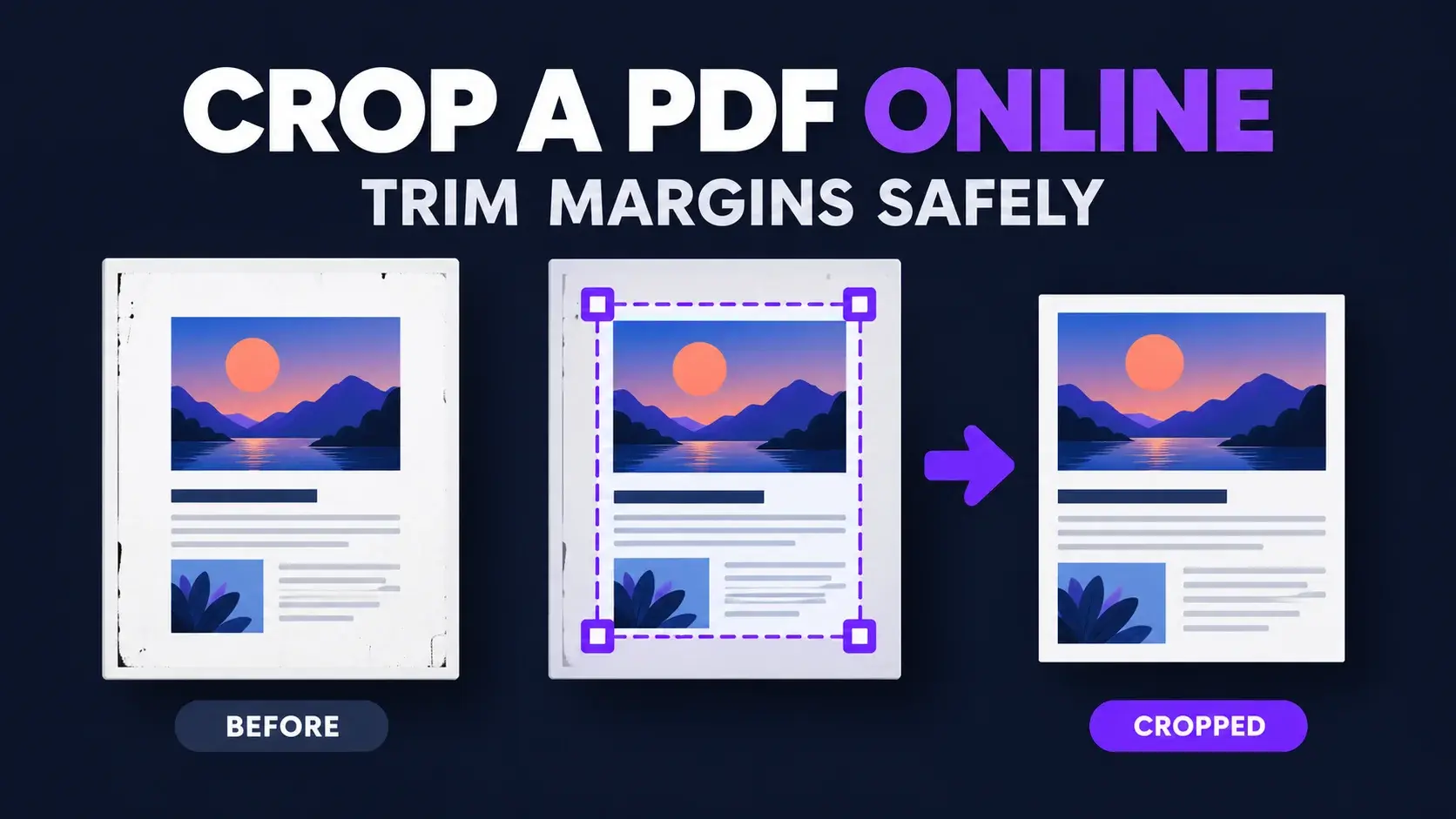
To crop a PDF online, select the file, draw a box around the part of the page you want to keep, apply the crop, and download the result. That sounds simple, but one detail matters: PDF cropping usually changes the visible page boundary rather than permanently deleting everything outside it.
This guide explains how to trim white margins without cutting off text, when it is safe to use the same crop on every page, and when you should resize, compress, or redact instead. It also shows exactly what FixMyPDF's Crop PDF tool does so you can choose the right workflow before changing an important document.
What Does Cropping a PDF Actually Do?
A PDF page can contain several page boundaries. The boundary normally shown by a PDF reader is called the CropBox. Cropping sets a smaller CropBox so the viewer displays only the selected area.
The content outside that box can still exist in the PDF. Adobe's official cropping documentation states that cropping hides content and does not reduce file size, and that resetting the page size can restore hidden content. This leads to three practical rules:
- Cropping is useful for removing visible white margins, scanner borders, headers, or unwanted edge areas.
- Cropping does not reliably make a PDF smaller.
- Cropping must not be used to conceal names, account numbers, signatures, or other sensitive information.
Crop, Resize, Compress, Redact, or Delete: Which Tool Do You Need?
| Goal | Right action | What changes |
|---|---|---|
| Remove visible white margins or scanner edges | Crop | The visible page boundary |
| Make pages A4, Letter, or another physical size | Resize | Page dimensions and possibly content scale |
| Reduce megabytes for email or upload | Compress | Images and other file data |
| Permanently remove confidential information | Redact | Sensitive content itself |
| Remove an entire unwanted page | Delete page | The page is omitted from the new PDF |
If your PDF has the wrong paper size, read our guide to A4, Letter, Legal, and mixed-size PDF pages. If file size is the problem, use the PDF Compressor instead of cropping.
How to Crop a PDF Online with FixMyPDF
- Open the FixMyPDF Crop PDF tool.
- Select a PDF from your device. The first page appears as the crop preview.
- Drag across the page to draw a rectangle around the content you want to keep.
- Move the rectangle or drag its corner handles until every required element is inside it.
- Leave Apply to all pages selected if every page has the same size, margins, and alignment. Turn it off to crop only the first page.
- Select Crop PDF, review the result, and download the new file.
The crop measurements shown by the tool are PDF points. There are 72 points in one inch, so 36 points equals half an inch. You do not need to calculate these values to crop visually, but they can help you understand the selected area.
How FixMyPDF Cropping Works
FixMyPDF renders a preview of page 1 and lets you draw, move, and resize one crop rectangle with a mouse or touch screen. The tool then writes that rectangle as the PDF CropBox.
- Default behavior: the same crop rectangle is applied to every page.
- Optional behavior: turn off Apply to all pages to crop page 1 only.
- Privacy: processing runs in your browser, so the document is not uploaded to a FixMyPDF processing server.
- Quality: the PDF page is not converted into a screenshot, so its original text and image quality is preserved.
The current tool does not automatically detect white margins, accept exact margin values, preview every page, or assign a different crop rectangle to each page. Knowing these limits helps you avoid applying a page 1 crop to pages with a different layout.
How to Trim White Margins Without Cutting Off Content
- Keep a small safety margin. Do not place the crop line directly against letters, page numbers, signatures, or image edges.
- Check all four sides. Scanner shadows and skew can make one edge tighter than another.
- Watch headers and footers. A page number may sit farther out than the main text.
- Check annotations. Comments, stamps, form fields, and handwritten marks can extend beyond the printed content.
- Download and inspect the result. Zoom in, search the text, and review the first, middle, and last pages before sharing or printing.
For printing, leave enough room for the printer's non-printable area. Borderless output is not supported by every printer, even when the PDF itself has no visible margin.
When Is It Safe to Apply the Same Crop to Every Page?
Applying one crop to all pages is efficient when a document was produced from one template or scanning setup. It is usually suitable for reports, invoices, forms, or book scans where every page has the same dimensions and alignment.
Do not assume it is safe when the PDF contains:
- Both portrait and landscape pages
- A4, Letter, Legal, or other mixed page sizes
- Off-center scans
- Different left and right margins on facing book pages
- Foldouts, covers, receipts, or attachments
Because FixMyPDF previews only the first page, inspect the document before applying one crop to all pages. For mixed layouts, split the PDF into consistent groups, crop each group separately, and merge the PDFs again afterward.
Cropping a Scanned PDF
Cropping is especially useful for scanned pages with dark borders, extra scanner-bed space, punch holes, or uneven white margins. It changes the visible page area but does not straighten a tilted scan or make image-only text searchable.
If you cannot select or search the text, the document is probably image-based. Cropping can clean up the edges, but optical character recognition is a separate step. See our scanned PDF versus searchable PDF guide to diagnose the file correctly.
A scan of two book pages side by side also needs a different workflow. Use the two-page scan splitting guide when the goal is to create a separate PDF page for each half.
Why Cropping Is Not Redaction
A cropped page may look as if information has disappeared, but a PDF editor or page-box reset can reveal content outside the CropBox. That makes cropping unsuitable for privacy removal.
Use a true redaction workflow when the goal is to remove a name, address, ID number, bank detail, signature, or confidential paragraph. After redaction, search for the original text, copy and paste from the affected area, and inspect the output in another viewer. Cropping is a layout change. Redaction is a content-removal and verification task.
Common Cropping Problems and How to Fix Them
Text is cut off on some pages. The pages do not share the same alignment or size. Return to the original, process matching page groups separately, or crop only page 1.
The PDF is still the same file size. This is expected because hidden content can remain in the file. Use the PDF Compressor if you need a smaller download.
The crop is too tight when printed. Restore a small border around the page content and check your printer's margin requirements.
The page has the wrong dimensions after cropping. Cropping is not the same as standardizing page size. Use Resize PDF when the output must match a specific paper format.
The PDF is password protected. You need the valid password or permission to modify the document before cropping it.
A Safe Pre-Download Checklist
- The crop keeps all text, page numbers, signatures, images, and annotations you need.
- The same crop is used across pages only when their size and alignment match.
- The result has been checked at high zoom and, if relevant, in print preview.
- No confidential information is being hidden by cropping instead of removed through redaction.
- The original PDF remains available as a backup.
- The downloaded PDF opens correctly in a second viewer.
Final Answer
The safest way to crop a PDF is to treat cropping as a change to the visible page boundary. Draw a slightly generous box around the content, apply one crop to all pages only when their layouts match, and verify the downloaded result. Use resize for paper dimensions, compression for file size, and redaction for sensitive information.
Ready to remove distracting margins? Open the FixMyPDF Crop PDF tool, select your file, and trim the visible page area directly in your browser.
Frequently Asked Questions
Ready to Try FixMyPDF?
Free, private, no account — 79+ PDF tools that run entirely in your browser.
Explore All 79+ Tools