
How to Split Two-Page PDF Scans into Separate Pages
Learn how to turn side-by-side book scans into separate left and right PDF pages, preserve covers, check page order, and handle OCR without rescanning.
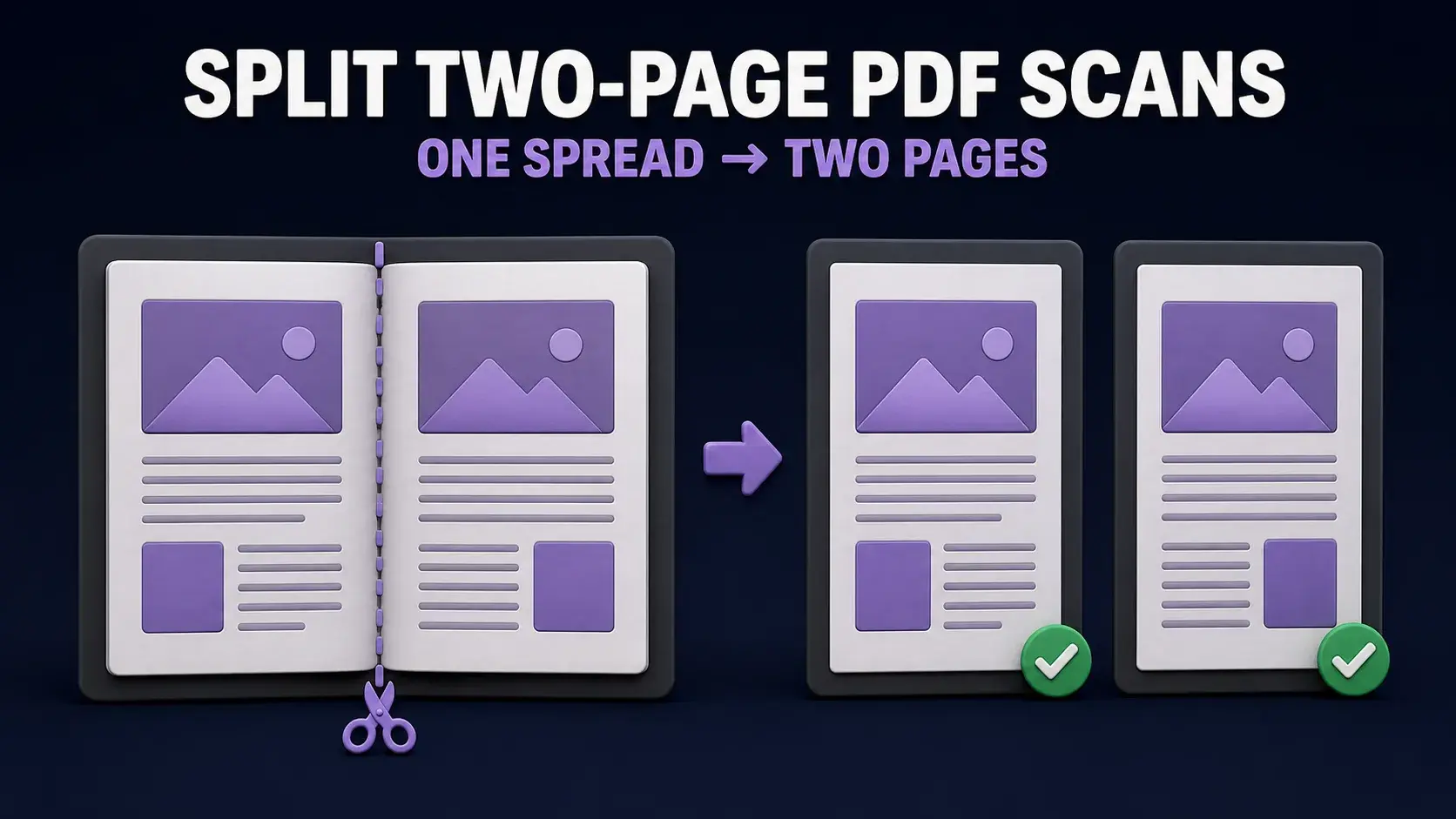
If every PDF page shows two facing book pages, an ordinary PDF splitter is the wrong tool. It separates existing PDF pages into files or ranges; it does not cut the left and right sides of one scanned spread. What you need is a page division: duplicate each spread, show the left half on one output page, show the right half on the next, and preserve the reading sequence. You can do that locally with FixMyPDF Divide Pages without uploading the document.
Quick Answer: Use a Vertical Cut for Side-by-Side Scans
For the usual book scan—left page and right page sitting side by side—choose Vertical: left and right halves. “Vertical” describes the cut line, which runs from the top edge to the bottom edge through the center gutter.
- Open Divide Pages.
- Select the PDF from your device.
- Choose Vertical: left and right halves.
- Leave the page field blank to divide every page, or enter only the pages that contain spreads.
- Select Divide Pages and download the result.
Each selected input page becomes two output pages. By default, the left half is followed by the right half. Unselected pages remain in their original position.
First Confirm Which Kind of “Split” You Need
The word split is used for two different operations, which is why many tutorials lead to the wrong tool.
| Your document | Operation needed | Use this tool |
|---|---|---|
| Each PDF page already contains one normal page | Separate pages or page ranges into different files | Split PDF or Extract Pages |
| Each wide PDF page contains a left and right book page | Cut every spread into two visible pages | Divide Pages with a vertical cut |
| Two logical pages are stacked top and bottom | Cut each page across the center | Divide Pages with a horizontal cut |
| You want several existing pages printed on one sheet | Combine pages into a print layout | N-Up PDF |
A quick diagnostic is to look at the page counter in your viewer. If a 200-page book reports roughly 100 wide PDF pages, it was probably scanned as two-page spreads.
How Divide Pages Works Without Rescanning
FixMyPDF copies each selected PDF page twice and assigns a different visible crop region to each copy. For a vertical division, the first output page shows the left 50 percent and the second shows the right 50 percent. The original page is not rendered into a screenshot.
This distinction matters. In PDF terminology, a CropBox defines the region normally displayed and printed; it does not necessarily delete every object outside that region. Adobe’s PDF documentation likewise describes the CropBox as the page region displayed and printed. That is why this workflow can preserve the scan’s existing resolution while remaining fast.
The processing happens inside your browser tab. Your PDF is read from your device and the completed file is created locally rather than being uploaded to a FixMyPDF processing server.
Preserve a Single Cover or Other Full-Width Pages
Scanned books frequently begin with a single cover, title page, map, or foldout, followed by two-page spreads. Dividing every PDF page would cut those single pages unnecessarily.
Use the page-range field to divide only the spreads. If page 1 is a cover and pages 2 through 60 are double-page scans, enter 2-60. Page 1 stays unchanged, while every selected spread produces two pages. You can combine ranges and individual pages, such as 2-18, 20-42, 45.
Check the PDF’s displayed page numbers rather than the printed number visible on the paper. Front matter often uses Roman numerals or no printed numbering, but the tool’s range always refers to the PDF page positions.
Check the Reading Order Before Processing the Whole Book
The current tool outputs the left half first and the right half second. That matches most left-to-right books. Test two or three spreads before processing a large document and confirm that the sequence reads correctly:
spread 1 left → spread 1 right → spread 2 left → spread 2 right.
Right-to-left books, including many manga, Arabic, Hebrew and Persian publications, commonly need the right half first. Divide Pages does not currently reverse each pair automatically. After dividing, use Reorder Pages to swap the pages in each pair, or use specialist software that supports right-to-left output directly.
What to Do with Rotated or Upside-Down Spreads
Orientation changes what “vertical” means visually. If a spread appears sideways, rotate it before dividing so the two book pages appear side by side on screen. Use Rotate PDF, download the corrected document, and then open it in Divide Pages.
Do not choose horizontal division merely because the source PDF is landscape. Choose based on where the logical pages sit: side by side requires a top-to-bottom cut; stacked pages require a left-to-right cut.
Centered Gutters, Off-Center Scans and Curved Spines
Divide Pages uses an exact 50/50 cut. It works well for flatbed scans, A3 spreads containing two A4 pages, and other layouts with a centered gutter. A true landscape A3 sheet is 420 × 297 mm; dividing its width in half produces two 210 × 297 mm A4 regions.
Inspect the center of several pages before processing. A fixed-center cut is a poor fit when:
- one page is visibly wider than the other;
- the gutter moves from scan to scan;
- text crosses the center because the book was not opened flat;
- the spine creates strong curvature or shadow;
- the scan includes fingers, clips or a large uneven border.
For small, consistent margins you may be able to crop the source first. For irregular pages, use a book-scan cleanup program that supports adjustable or per-page split lines. The safest rule is simple: if the center line would cut letters or illustrations, do not run a fixed 50/50 division.
Does Splitting Reduce Image Quality or Increase File Size?
The tool changes page boundaries rather than rasterizing the PDF, so it does not intentionally lower the scan resolution or apply JPEG compression. Zoomed text and images should retain the quality present in the source.
The output may nevertheless be larger. Every selected spread becomes two page objects, and both halves can reference or contain resources originating from the same source page. If the finished document is inconveniently large, verify its quality first and then use Compress PDF. Keep the undivided original as a backup.
What Happens to OCR and Searchable Text?
A raw scan usually contains page images only. OCR software can add an invisible searchable text layer over those images; Adobe describes OCR as creating a searchable text layer in a scanned PDF. Dividing visible page regions does not perform OCR and does not rebuild that layer into separate semantic pages.
Consequently, a divided page may look correct while text selection, copying or extraction still includes words from the hidden half of the original spread. Results depend on how the source PDF was constructed and how the viewer interprets cropped content.
- After dividing, search for a distinctive word on each half.
- Try selecting and copying a paragraph near the gutter.
- Paste it into a plain-text editor and check for words from the opposite page.
- If clean text extraction matters, run OCR on the divided document and verify the result.
Read Scanned PDF vs Searchable PDF if you are unsure whether the source has an OCR layer.
Quality-Control Checklist for the Finished PDF
- The page count increased by one for every page you selected to divide.
- The cover, title pages and foldouts that were excluded remain whole.
- No letters, page numbers, illustrations or marginal notes are cut at the gutter.
- Left and right pages appear in the intended reading order.
- All pages are upright and use a consistent orientation.
- Search and copy behavior is acceptable if the document contains OCR text.
- Bookmarks, links, comments and form elements still lead where expected.
- A test print uses the correct paper size and does not clip the outer margins.
Keep the original scan until you have checked the complete output. Cropping is reversible in some PDF editors, but relying on that is not a substitute for preserving the source.
Common Problems and the Correct Fix
| Problem | Likely cause | Best response |
|---|---|---|
| Pages are cut into top and bottom sections | Horizontal mode was selected | Run the original again using Vertical: left and right halves |
| The cover is cut in half | Every page was selected | Exclude the cover using the page-range field |
| Text is clipped at the spine | The gutter is off-center or curved | Use an adjustable scan-splitting application |
| Reading order is wrong | The book reads right to left | Swap each resulting pair with Reorder Pages |
| Pages appear sideways | The source has page rotation | Rotate the source before dividing |
| Copying returns text from both halves | The old OCR layer remains beneath the cropped view | Run and verify OCR after division |
| The output is unexpectedly large | Each spread now contributes two page objects | Verify first, then compress a copy |
The Recommended Workflow
- Save an untouched backup of the source scan.
- Rotate any sideways pages.
- Identify single pages that must remain whole.
- Open Divide Pages and choose a vertical split.
- Enter only the spread page ranges.
- Process a short sample and verify the gutter and reading order.
- Process the complete document.
- Reorder page pairs if the publication reads right to left.
- Test OCR, links, bookmarks and printing as applicable.
- Compress only after confirming the divided copy is correct.
This sequence solves the actual problem—turning one scanned spread into two readable PDF pages—without confusing it with extracting existing pages or splitting a file into separate documents.
Frequently Asked Questions
Ready to Try FixMyPDF?
Free, private, no account — 79+ PDF tools that run entirely in your browser.
Explore All 79+ ToolsRelated Comparisons
Scanned PDF vs Searchable PDF: How to Tell the Difference and Fix It
Read article →TutorialHow to Split PDF Files: A Complete Guide to Extracting and Separating Pages
Read article →GuideHow to Split a PDF for Free (Every Method Explained)
Read article →GuideWhat’s Inside a PDF File? How to Inspect Text, Fonts, Images, Forms, Scripts and Attachments
Read article →