
How to Print 2 Pages Per Sheet from a PDF (Free)
Learn how to print 2 pages per sheet from a PDF in under a minute. Use a free N-Up tool or your print settings. No upload, no sign-up.
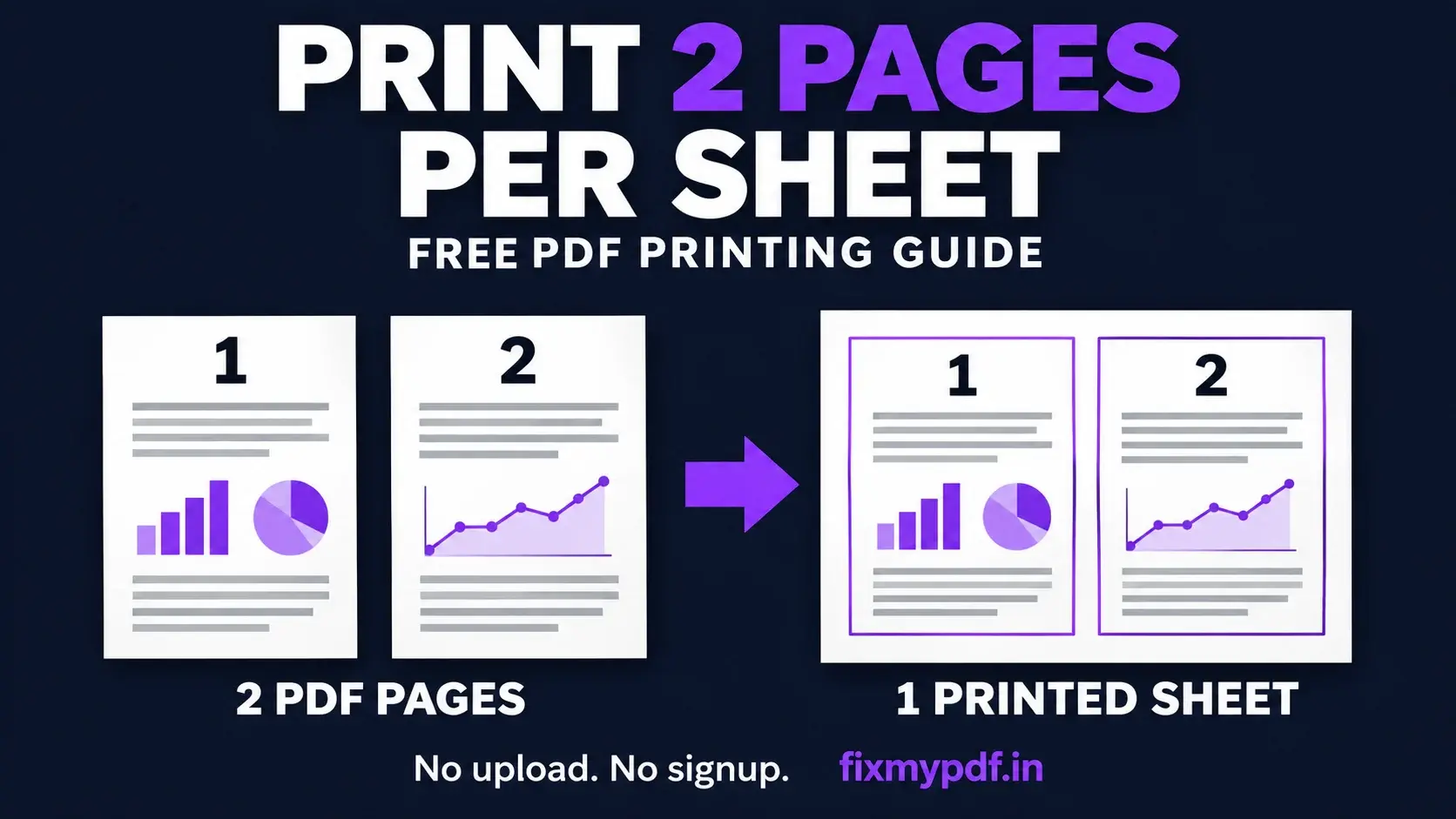
Want to print 2 pages per sheet from a PDF? You can do it in about a minute. Open your PDF in a free N-Up tool, choose the 2-up layout, and download the new file. Each sheet of paper will now show two pages side by side. You use half the paper and still get a clear, readable print.
In this guide, you will learn the easiest way to do it, plus other ways that use your printer settings. You will also see which method is best for you, and how to keep your file private.
What Does "2 Pages Per Sheet" Mean?
Normally, one PDF page prints on one sheet of paper. With "2 pages per sheet," two PDF pages are shrunk a little and placed side by side on the same sheet. This is also called 2-up printing, and it is one type of N-Up layout. The "N" is just the number of pages on each sheet.
For example, a 20-page PDF printed 2 per sheet uses only 10 sheets of paper. That is a 50% saving.
Why Print 2 Pages Per Sheet?
- Save paper: you use half as many sheets.
- Save money: less paper and less ink over time.
- Easy to carry: a thinner stack is lighter in your bag.
- Good for reading and notes: most documents are still easy to read at this size.
- Better for the planet: fewer sheets means less waste.
Method 1: Use a Free Online N-Up PDF Tool (Fastest)
This is the easiest way because you do not need to install anything. It also works on any device with a browser.
- Open the N-Up PDF tool. Go to the N-Up PDF tool on FixMyPDF.in.
- Add your PDF. Drag your file into the box, or tap to choose it from your device.
- Pick the 2-up layout. Choose the two-page, side-by-side layout rather than the default four-page layout.
- Check the paper size and direction. A4 or Letter, and landscape is the usual choice for two pages side by side.
- Generate and download your new PDF. The current tool does not have a built-in preview. Open the downloaded file to make sure the pages look right and the text is clear.
- Print it normally. Set the printer to 1 page per sheet because the downloaded file already has the 2-up layout.
Important: Match the printer paper size to the generated PDF. Use "Actual size" or 100% when the content fits within your printer's printable area; if the preview shows clipping, allow fitting or increase the tool's margins. Do not select 2 pages per sheet again, or you will place four original pages on each printed side.
Why a browser-based tool is a good choice
Many online PDF sites upload your file to a server. That can be a problem if your file has personal or work details. A browser-based tool does the work on your own device, so your file stays with you. If privacy matters to you, read our guide: Is It Safe to Use an Online N-Up PDF Tool?
Method 2: Use Your Print Settings (No Extra File)
Most PDF readers and browsers can print 2 pages per sheet directly. The exact names change a little from app to app, but the idea is the same.
In Adobe Acrobat Reader
- Open the PDF and press Ctrl + P (Windows) or Cmd + P (Mac).
- Click Multiple under "Page Sizing & Handling."
- Set Pages per sheet to 2.
- Choose the page order and turn on borders if you want them.
- Click Print.
In Google Chrome or Microsoft Edge
- Open the PDF in the browser and press Ctrl + P (or Cmd + P).
- Click More settings.
- Find Pages per sheet and choose 2.
- Click Print.
In Mac Preview
- Open the PDF and choose File > Print.
- Click Show Details if you see a small window.
- Open the middle drop-down menu and choose Layout.
- Set Pages per Sheet to 2, then print.
Note: Some printers add their own "pages per sheet" setting in the printer driver. If you cannot find it in the app, look in Printer Properties or Preferences.
Which Method Should You Use?
| Feature | Online N-Up tool (FixMyPDF) | Print settings (Acrobat, Chrome, Preview) |
|---|---|---|
| Creates a new PDF file | Yes | No, prints only |
| Install software | No | Maybe |
| Works on phone | Yes | Sometimes |
| Share the 2-up file with others | Yes | No |
| Preview before printing | Open the downloaded PDF | Yes, depending on the print dialog |
| Control over layout and spacing | More options | Basic options |
| Works if your printer has no 2-up setting | Yes | No |
| File privacy | Stays in your browser | Stays on your device |
Simple rule: if you want a saved 2-up file, or your printer does not have the option, use the online tool. If you only need a quick print once, use your print settings.
Tips for a Clean 2-Up Print
- Use landscape paper direction. Two portrait pages fit best side by side on a landscape sheet.
- Check the text size. If the original text is very small, 2-up may be too tiny. Try it on one page first.
- Add a thin border. Borders make it clear where one page ends and the next begins.
- Keep some margin. A small gap stops the print from touching the paper edge.
- Print a test page. Always print one sheet before you print the whole file.
- Print on both sides. Combine 2-up with double-sided printing to save even more paper. For example, a 20-page PDF can fit on just 5 sheets.
Common Problems and Easy Fixes
The text looks too small. Try the same layout on larger paper, or use a PDF with bigger fonts. If you can, try 1 page per sheet for the pages with fine print.
The pages are cut off at the edge. Match the PDF and printer paper sizes, add a little margin in the tool, and inspect the print preview. If 100% size clips the edges, use the printer's fit option.
The pages are in the wrong order. Choose horizontal page order in the tool for left-to-right placement. FixMyPDF currently offers horizontal and vertical order, not right-to-left order. If you need a different sequence, reorder the PDF pages first.
My printer ignores the 2-up setting. Create a 2-up PDF with the online tool first, then print that file normally.
The file is too large. Compress the PDF first, then run the N-Up tool on the smaller file.
Frequently Asked Questions
Final Thoughts
Printing 2 pages per sheet is a simple way to save paper, ink, and money. For a quick one-time print, use your print settings. For a saved file, a phone-friendly option, or a printer with no 2-up setting, an online N-Up tool is the better choice.
Ready to try it? Open the free N-Up PDF tool on FixMyPDF.in, pick the 2-up layout, and get your file in seconds, with your file staying private in your browser.
Ready to Try FixMyPDF?
Free, private, no account — 84+ PDF tools that run entirely in your browser.
Explore All 84+ Tools