
Best Free PDF Tools With No File Size Limit (2026)
Most free PDF tools cap you at 5–50MB. This guide covers the tools that actually have no file size limit — and explains why client-side processing is the reason some tools can offer this.
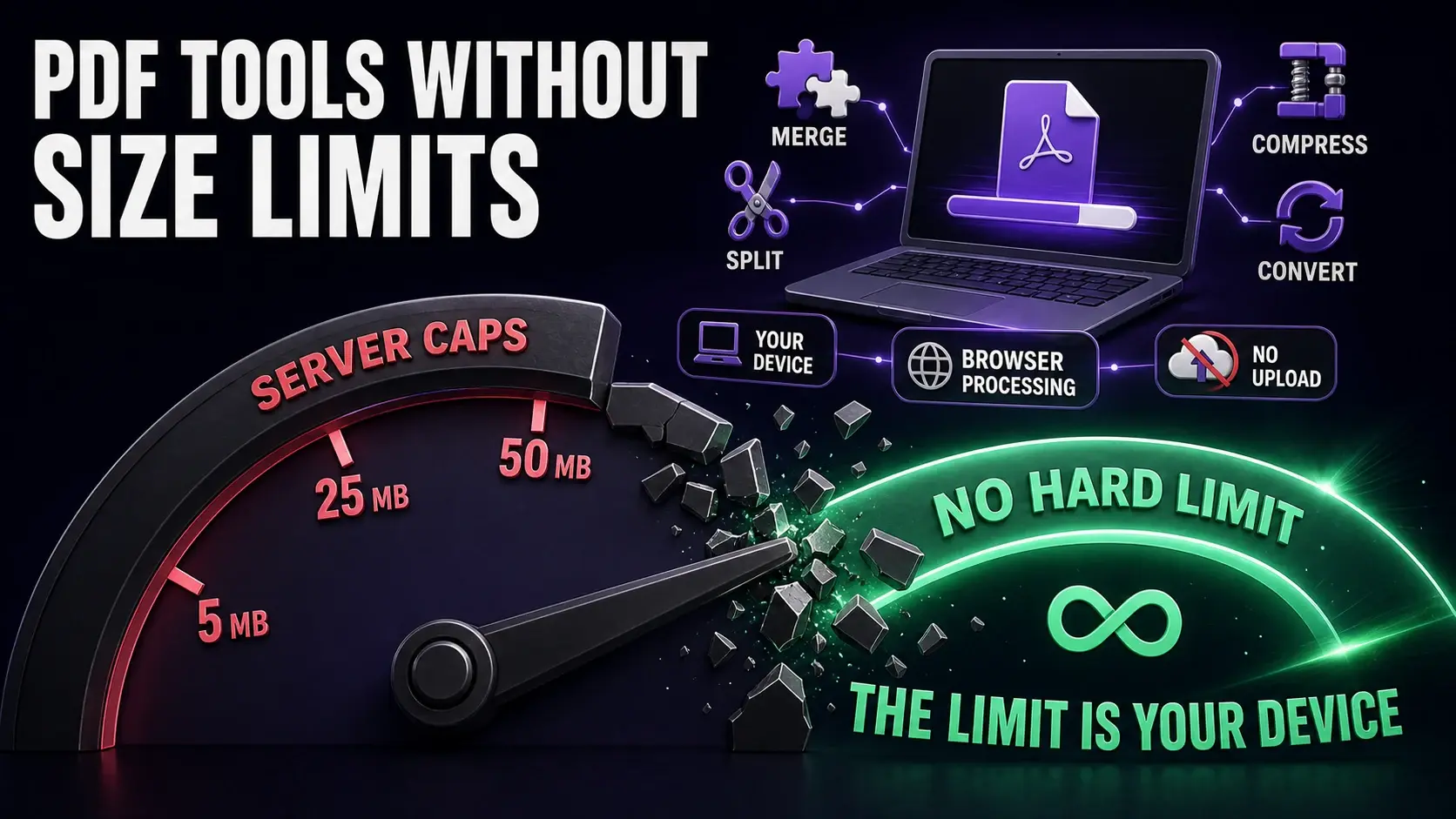
The most frustrating feature of free online PDF tools is the file size wall. You upload a document, wait for the progress bar, and then see: "File exceeds the 5MB limit for free users." This guide covers why file size limits exist on most free PDF tools, which tools have genuinely removed them, and what to look for when choosing a PDF tool for large files. See also the full PDF tool comparison table for a head-to-head view of limits, privacy, and cost.
Why Most Free PDF Tools Have File Size Limits
Server-based PDF tools charge for server capacity. Processing a 100MB PDF takes significantly more CPU time, memory, and bandwidth than processing a 2MB PDF. When your file is processed on their servers, that cost scales with your file size. Free tiers offset this by capping file sizes, limiting daily tasks, or showing ads. The economics are straightforward: larger files cost more to process remotely, so free users get smaller files. Premium users pay to remove the cap.
Client-Side Processing: Why It Eliminates Size Limits
Browser-based PDF tools that process files locally do not have this problem. When your browser runs WebAssembly to compress or merge a PDF, it uses your device's CPU and memory — not a server. There is no bandwidth cost for the provider, no server load, no storage. The only limit is your device's available RAM, which on any modern computer or phone easily handles PDF files up to hundreds of megabytes. FixMyPDF uses this architecture for all 76+ tools, which is why there is no file size limit on any operation.
Tools With No File Size Limit
FixMyPDF: No file size limit, no account, entirely browser-based. Works on Mac, Windows, iPhone, Android, and any device with a modern browser. Free with no subscription. PDF24: A mix of browser-side and server-side tools. Some tools are unlimited; others have caps depending on the operation. Requires checking per-tool. Stirling-PDF: An open-source self-hosted tool — unlimited since you run it on your own server. Requires technical setup. Adobe Acrobat (paid): No file size limit on the desktop application. The web version has limits on the free plan. The desktop app costs £17.99/month or more.
Which Operations Can Be Done Client-Side?
Not every PDF operation can be done entirely in the browser. Compress, merge, split, rotate, reorder, crop, protect, watermark, annotate, redact, sign, page numbers, metadata edit, flatten, and format conversions (JPG/PNG/HEIC/TIFF/BMP/WebP to PDF) can all be done client-side with WebAssembly. OCR (optical character recognition to extract text from scanned PDFs) and MS Office format conversions (PDF to Word, PDF to Excel) require server-side processing because the AI/ML models involved are too large to run in a browser efficiently. If you need OCR, you will need a server-based tool — and therefore a tool that may have size limits.
Practical Tips for Large PDFs
If you regularly work with large PDFs, a few strategies help: process locally using a client-side tool like FixMyPDF to avoid any limits; split a very large file first if you only need to work on specific pages; compress before merging if you are combining multiple large files. The FixMyPDF compressor can reduce most PDFs by 40-80% before you use them in other operations. Splitting into chapters or sections before processing can also make large documents more manageable.
Summary: What to Look For
When evaluating a free PDF tool for large files, ask three questions: Does it process locally or upload to a server? (Local = no practical size limit.) Does it have a stated file size cap? (If yes, check the paid tier cost.) Does it work on your device without an account? FixMyPDF answers all three favourably. For most everyday PDF tasks on files of any size, it is the most capable free option available in 2026.
Ready to Try Our Tools?
Experience fast, secure, and private PDF processing in your browser.
Explore All Tools


