
Scanned PDF vs Searchable PDF: How to Tell the Difference and Fix It
Learn the five PDF text states, diagnose why Ctrl+F or copy and paste fails, make scanned PDFs searchable with OCR, and verify the result.
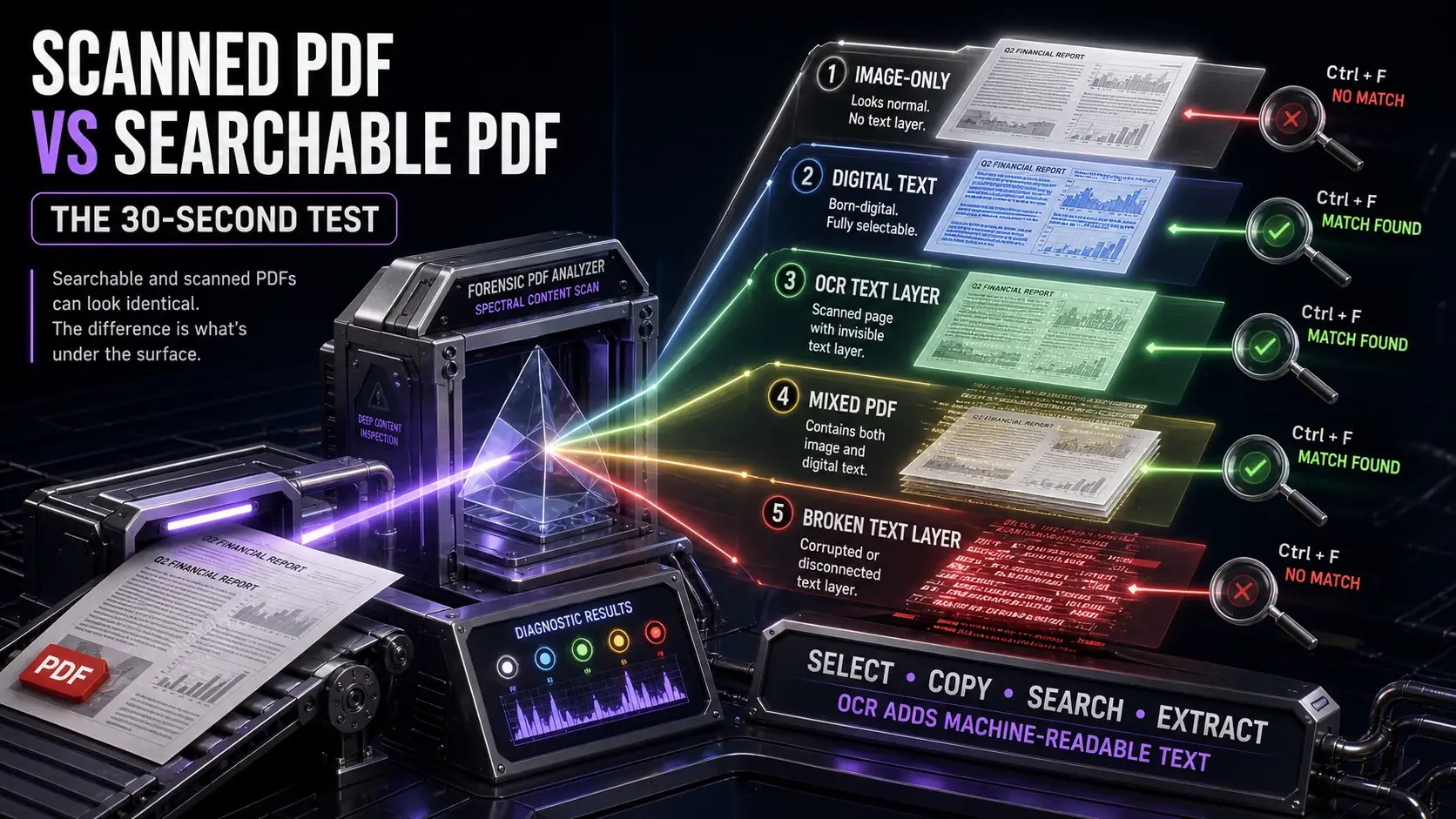
A scanned PDF stores each page as an image, so its words cannot normally be selected, searched, copied, or read by assistive technology. A searchable PDF contains machine-readable text—either original digital text or a text layer added by optical character recognition (OCR). The files can look identical on screen, so appearance alone is not a reliable test. This guide gives you a 30-second diagnosis, explains five real PDF text states, and shows how to choose and verify the right fix.
Scanned PDF vs Searchable PDF: The Practical Difference
| Capability | Image-only scanned PDF | Searchable PDF |
|---|---|---|
| Select individual words | No | Usually yes |
| Use Ctrl+F or Cmd+F | No text to search | Yes, if the text layer is accurate |
| Copy and paste text | No | Yes |
| Extract text for indexing or AI | Requires OCR or image analysis | Usually direct |
| Screen-reader access | Inherently inaccessible as text | Possible, but tags and reading order still matter |
| Typical origin | Scanner, phone camera, screenshot | Word export, browser print, design software, or OCR |
A searchable PDF is not necessarily editable or accessible. “Searchable” only means the file contains text data that software can query. Editing requires a tool that understands layout, while accessibility also depends on semantic tags, reading order, language, headings, tables, and alternative text.
The Five PDF Text States You Can Actually Encounter
- Digital text PDF: created from Word, Google Docs, a browser, or publishing software. Text is stored as characters with fonts and positions.
- Image-only scanned PDF: each page is a photograph of paper. The words are visible to you but do not exist as text data.
- OCR-searchable PDF: the original scan remains visible while an invisible recognized-text layer sits behind it. Search and copy work, but the page is still visually an image.
- Mixed PDF: some pages or regions contain digital text and others contain scans. A cover page may search correctly while attached receipts do not.
- Broken text-layer PDF: text appears selectable but copying or searching returns missing, scrambled, or incorrect characters because OCR, font encoding, or Unicode mapping is defective.
This five-state model explains why “I can select text” and “Ctrl+F works” are useful clues but not complete proof that the entire document is reliable.
How to Tell in 30 Seconds: Select, Copy, Search, Extract
- Select: drag across one printed word. Selecting the whole page instead of individual characters suggests an image-only scan.
- Copy: paste that word into a plain-text editor. If it becomes different letters or random symbols, the text layer is broken.
- Search: use Ctrl+F on Windows or Cmd+F on Mac and enter a distinctive visible word—not a common word such as “the.”
- Sample: repeat the tests near the beginning, middle, and end to catch mixed PDFs.
- Extract: use FixMyPDF PDF to Text to test the embedded text layer locally. Empty output means no usable text was found; garbled output exposes an encoding or OCR problem.
- Inspect: use PDF Inspector to review fonts, images, pages, security, and structure without uploading the document.
These tests are diagnostic. PDF to Text extracts text that already exists; it does not run OCR on image-only pages.
Why Ctrl+F Can Fail Even When the PDF Looks Searchable
A failed search does not always prove that the page is a scan. The stored OCR may spell “invoice” as “invo1ce”; a ligature may encode “fi” as an unexpected character; the OCR language may be wrong; a custom font may lack a usable Unicode map; or only part of the document may have a text layer. Browser viewers can also take time to index very large files.
Copy the visible word and paste it into a plain-text editor. Search for the pasted characters rather than what your eyes see. If that works, the PDF contains text but its encoding is unreliable. Re-running OCR can rebuild the text layer from the visible page, although critical content must be checked afterward.
How OCR Makes a Scanned PDF Searchable
Optical character recognition analyzes page pixels, identifies likely characters and words, and records their positions. In a common “searchable image” output, the scanner image remains the visible layer and recognized text is positioned invisibly behind it. That is why the page can look unchanged while search, selection, copy, indexing, and text extraction suddenly work.
OCR is recognition, not proof. It can misread names, dates, totals, decimal points, account numbers, legal citations, tables, handwriting, decorative fonts, and multi-column reading order. Treat the page image as the source of truth and the OCR layer as a searchable interpretation.
How to Make a Scanned PDF Searchable
Adobe Acrobat desktop: use Scan & OCR → Recognize Text → In This File, choose the correct language, recognize, then save a new copy. Adobe documents the current workflow in its official OCR guide. It is a strong option for complex layouts and desktop processing.
Google Drive and Google Docs: useful for simple, non-sensitive documents. Upload the PDF, open it with Google Docs, review the recognized text, and export if needed. Formatting may change, and the file is processed in the cloud.
OCRmyPDF: a free open-source local workflow for technical users. It adds a searchable text layer while preserving the scan and supports deskewing and language packs. A typical command is ocrmypdf --deskew -l eng input.pdf output.pdf.
Scanner or mobile app: when you control the original, rescanning with “searchable PDF” or OCR enabled often gives better results than repairing a poor photo later. Use a reputable desktop or on-device method for confidential records.
FixMyPDF does not currently perform OCR. It can diagnose an existing text layer and prepare the document before or after OCR without uploading it.
Prepare the Scan Before OCR for Better Accuracy
- Use about 300 DPI: lower resolution can merge character details; extreme resolution increases processing and file size without guaranteeing better recognition.
- Correct orientation: use Rotate PDF before OCR when pages are sideways or upside down.
- Deskew crooked lines: even a small tilt can reduce recognition quality.
- Improve contrast carefully: grayscale or black-and-white conversion can help clean printed pages, but it can erase faint stamps, pencil notes, photographs, or colored evidence. Keep the original.
- Choose the correct language: recognition models use language-specific dictionaries and character sets.
- Remove noise: use Remove Blank Pages so OCR does not waste time on empty scans.
- Split very large files: split a large PDF into manageable sections when the OCR application struggles with memory or time limits.
- Do not aggressively compress first: compression artifacts can blur fine character details. OCR the best available copy, verify it, then compress a duplicate afterward.
How to Verify That OCR Actually Worked
- Search for uncommon words on at least three different pages.
- Select and copy complete sentences into a plain-text editor.
- Check high-risk characters such as 0/O, 1/l/I, decimal points, minus signs, and punctuation.
- Verify names, dates, totals, identifiers, and legal clauses against the visible scan.
- Test multi-column pages for the correct reading order.
- Run PDF to Text and scan the extracted output for omissions or scrambled sections.
- Keep the untouched original and save the OCR result under a new filename.
For financial, legal, medical, or compliance use, OCR should accelerate review—not replace human verification.
Searchable Does Not Automatically Mean Accessible
The W3C PDF7 accessibility technique explains that an image-only scanned PDF is inherently inaccessible as text because assistive technology cannot read or extract its words. OCR is therefore an essential first step, but it is not the whole accessibility workflow.
An OCR-searchable PDF may still have no headings, incorrect reading order, untagged tables, missing alternative text, no declared language, and unlabeled form fields. Public-facing documents should be tested with an accessibility checker and, where possible, a screen reader after OCR. Read our PDF accessibility guide for the broader remediation process.
Scanned PDFs, AI Tools, and Privacy
Clean embedded text usually makes a PDF easier for search engines, document-management systems, and AI tools to index, quote, and analyze. Some multimodal AI systems can interpret page images directly, but OCR gives you text that can be inspected and corrected before analysis.
Do not upload a confidential scan merely to make it searchable. Contracts, identification documents, bank statements, tax files, HR records, and medical documents may require local OCR or organizational approval. If you use a cloud service, check who processes the file, how long it is retained, whether it trains models, and how deletion works. See the PDF privacy guide for a fuller risk assessment.
Decision Checklist: What Should You Do Next?
- Text selects, copies, and searches correctly: no OCR is needed. Use PDF to Text when you need the content outside the file.
- No words can be selected: use OCR. Prefer local or desktop OCR for sensitive documents.
- Some pages work and others do not: OCR only the image-only pages if your software supports it, or OCR the full document and verify duplicates.
- Text selects but is garbled: re-run OCR to rebuild the text layer from the visible page.
- The scan is sideways, blank-heavy, or enormous: rotate, remove blank pages, or split it before OCR.
- The result will be published publicly: continue beyond OCR with accessibility tagging and testing.
- The file will be given to AI: verify OCR accuracy and permission to disclose the document first.
Inspect your PDF privately when you are unsure which branch applies. The file stays in your browser.
Frequently Asked Questions
Ready to Try FixMyPDF?
Free, private, no account — 79+ PDF tools that run entirely in your browser.
Explore All 79+ ToolsRelated Comparisons
Image to PDF Guide: How to Convert JPG, PNG, and Other Images to PDF
Read article →GuidePDF Accessibility Guide: Making Your Documents Readable for Everyone
Read article →PrivacyPDF Privacy in 2026: What Happens to Your Files With Online Tools
Read article →Best PracticesWhy Client-Side PDF Processing Matters for Your Privacy
Read article →